Key takeaways:
- Extra spaces in Excel—leading, trailing, or multiple spaces between words—are a common source of errors, breaking formulas like
VLOOKUP,RIGHT, andCONCATand leading to hours of manual cleanup with theTRIMfunction. - Excel AI tools like Excelmatic replace the need for manual formulas. You can clean entire datasets by simply asking in plain language, such as "remove all extra spaces from the customer name column."
- Using Excelmatic for data cleaning drastically reduces time spent, improves accuracy by applying rules consistently, and eliminates the complexity of nesting multiple functions like
TRIM,RIGHT, andVALUEtogether.
The Hidden Menace in Your Spreadsheet: Why Extra Spaces Wreak Havoc
You've just imported a sales report or a customer list from another system into Excel. Everything looks perfect at a glance. You start building your analysis—a VLOOKUP to merge customer details, a SUMIFS to calculate regional totals, or a pivot table to summarize the data. But nothing works. Formulas return #N/A errors, sums are incorrect, and your pivot table shows duplicate entries for what should be the same item.
The culprit? A tiny, invisible character: the extra space.
This is one of the most common and frustrating problems for any Excel user. Data imported from databases, CRMs, or web forms is often littered with inconsistent spacing:
- Leading spaces: Spaces before the text begins (e.g.,
" John Smith"). - Trailing spaces: Spaces after the text ends (e.g.,
"John Smith "). - Extra spaces between words: Multiple spaces where there should only be one (e.g.,
"John Smith").
To Excel, "John Smith" and " John Smith " are two completely different text strings. This seemingly minor issue can derail your entire analysis, forcing you to spend hours hunting down and manually deleting these pesky spaces, cell by cell.
The Traditional Fix: A Deep Dive into the TRIM Function
For decades, the standard solution for this problem has been the TRIM function. It's a fundamental tool in any Excel user's data cleaning arsenal.
The syntax is straightforward:
=TRIM(text)
This function takes a text string (or a cell reference) and removes all leading and trailing spaces, while also reducing multiple in-between spaces to a single space.
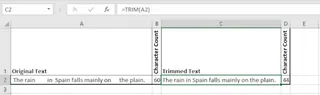
However, real-world data cleaning is rarely this simple. The TRIM function is almost never used in isolation. It's typically the first step in a more complex, multi-layered formula, which is where the limitations start to appear.
The Problem with the Traditional Method
Let's look at a few common scenarios where TRIM is necessary, but also where the process becomes cumbersome.
1. Splitting Text with LEFT or RIGHT
Imagine you need to extract a 7-character postal code from the end of an address string. You might try using the RIGHT function: =RIGHT(A2, 7). But if cell A2 has trailing spaces, your formula will grab those spaces instead of the actual code.
To fix this, you must "nest" the TRIM function inside the RIGHT function:
=RIGHT(TRIM(A2), 7)
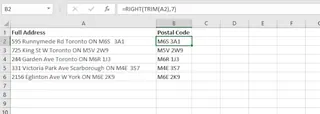
This works, but it requires you to create a helper column, write the nested formula, and remember to drag it down for every single row.
2. Joining Text with CONCAT
What about the opposite problem? You have first names in column A and last names in column B, both with messy spacing. You try to join them with =CONCAT(A2, " ", B2). The result is a mess of extra spaces.
Again, you need to nest functions. You could TRIM each cell individually before concatenating, or TRIM the final result:
=TRIM(CONCAT(A2, " ", B2))
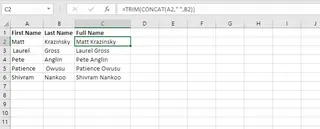
3. The Limitations Become Clear
While the TRIM function is powerful, this manual approach has significant drawbacks:
- It's Tedious and Repetitive: For every cleaning task, you must create new columns, write formulas, and copy them down. If you have 10 columns to clean, that's 10 new helper columns and 10 formulas to manage.
- It's Error-Prone: A slight mistake in your nested formula, like a misplaced parenthesis, can lead to incorrect results that are hard to spot. Forgetting to update the formulas for new rows of data is another common error.
- It's Not Scalable: As your formulas get more complex (e.g., combining
TRIM,SUBSTITUTE,VALUE, andMIDto extract and convert numbers), they become nearly impossible for you or your colleagues to read, debug, or maintain. - It Creates Clutter: Your spreadsheet quickly fills up with temporary "helper" columns, making it difficult to navigate and understand the final output.
There has to be a better way. And now, there is.
The Modern Solution: Cleaning Data with an Excel AI Agent (Excelmatic)
Instead of you telling Excel how to clean the data step-by-step with formulas, what if you could just tell it what you want? That's the promise of an Excel AI Agent like Excelmatic.

Excelmatic is a tool that lets you use plain language to perform complex data tasks. You upload your messy spreadsheet and simply have a conversation with the AI to get your data cleaned, analyzed, and formatted in seconds.
Step-by-Step: Removing Extra Spaces with Excelmatic
Let's revisit the same problems, but solve them the AI way.
1. Upload Your Data File
First, simply drag and drop your Excel or CSV file into Excelmatic. The AI will instantly read your data and show you a preview.

2. Use Plain Language Prompts
Now, instead of writing formulas, you just type your request in the chat box. Here are a few examples:
- To fix leading and trailing spaces: "Remove all leading and trailing spaces from the 'Address' and 'Customer Name' columns."
- To fix extra spaces between words: "In the 'Product Description' column, make sure there is only a single space between each word."
- To join and clean columns simultaneously: "Combine the 'First Name' and 'Last Name' columns into a new column called 'Full Name'. Make sure to remove any extra spaces from the names before joining them."

The AI understands your intent and performs the cleaning operation across the entire dataset instantly. No helper columns, no formulas to drag.
3. Review and Iterate
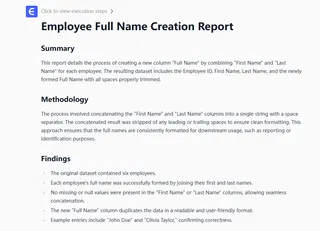
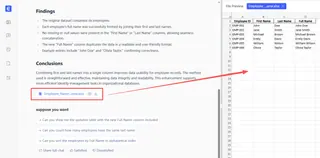
Excelmatic will present the cleaned data in a new table. From here, you can continue the conversation. This iterative process is where the magic happens. You can immediately build on your cleaned data with follow-up requests:
- "Great. Now that the addresses are clean, extract the last 7 characters into a new 'Postal Code' column."
- "Based on the cleaned 'Full Name' column, count how many unique customers we have."
- "Create a pivot table showing the sales total for each customer."
This conversational flow is impossible with traditional formulas, where each new request would mean another complex formula and more helper columns.
4. Export Your Clean Data
Once you're satisfied, you can download the cleaned and analyzed data as a new, perfectly formatted Excel file with a single click.
Dialogue Example: From Messy Data to Clean Insights
Here’s what a typical conversation in Excelmatic looks like:
User: My 'Address' column has a lot of extra spaces at the end, which is messing up my attempt to extract the 7-digit postal code. Can you clean the 'Address' column first?
Excelmatic: Of course. I've cleaned the 'Address' column by removing all leading and trailing spaces. The cleaned data is ready. Would you now like me to extract the last 7 characters from the cleaned address into a new 'Postal Code' column?
User: Yes, please do that. And then can you count how many addresses are in the 'K1A 0B1' postal code?
Excelmatic: Done. I have created the 'Postal Code' column and found that there are 15 addresses with the postal code 'K1A 0B1'. Here is the summary table.
Traditional TRIM vs. Excelmatic: A Quick Comparison
| Feature | Traditional TRIM Method |
Excelmatic AI Method |
|---|---|---|
| Method | Manual formula creation (=TRIM(...)) |
Natural language chat prompt |
| Time | Minutes to hours, depending on complexity | Seconds |
| Complexity | Requires knowledge of nesting functions | Just describe the desired outcome |
| Flexibility | Rigid; changes require new formulas | Highly flexible; iterate with follow-up questions |
| Workflow | Clutters sheet with helper columns | Clean, self-contained, and downloadable |
FAQ
1. Do I need to know the TRIM function to use Excelmatic for cleaning spaces?
Not at all. You don't need to know any Excel functions. Just describe the problem in your own words (e.g., "get rid of extra spaces"), and the AI will handle it.
2. Will Excelmatic modify my original Excel file? No. Your original file remains untouched. Excelmatic operates on a copy of your data in a secure, private workspace, and you can download the transformed data as a new file.
3. What if my data has other issues besides spaces, like inconsistent capitalization or formats? You can handle multiple cleaning tasks in a single conversation. For example, you can ask: "In the 'City' column, remove all extra spaces and convert the text to proper case." Excelmatic will perform both actions in one step.
4. Is it safe to upload sensitive company data to Excelmatic? Data privacy and security are top priorities. Excelmatic uses industry-standard encryption and security protocols to protect your data. For detailed information, please refer to the privacy policy on the official website.
5. Can Excelmatic handle very large files with hundreds of thousands of rows? Yes. Excelmatic is a cloud-based application designed to handle large datasets far more efficiently than the desktop version of Excel, which can become slow or unresponsive with large files.
Ditch the Manual Cleanup: Upgrade Your Workflow with Excelmatic
Think about the last time you spent an hour debugging a broken VLOOKUP only to find a trailing space was the cause. That's time you'll never get back. The manual, formula-driven approach to data cleaning is a relic of the past—it's slow, fragile, and a major drain on productivity.
With an Excel AI agent like Excelmatic, you can transform this tedious chore into a quick, simple conversation. You can focus on analyzing your data and finding insights, not wrestling with formulas.
Ready to stop fighting with spaces and start getting work done?
Try Excelmatic for free today and clean your next spreadsheet in seconds. Just upload the file you're working on right now and ask it to "clean up the extra spaces." You'll be amazed at the difference.