Key takeaways:
- Manually calculating conditional averages in Excel with
AVERAGEIForAVERAGEIFSis time-consuming, error-prone, and difficult to adapt for new questions. - Excel AI tools like Excelmatic replace complex formulas with simple, natural language prompts, allowing you to ask questions like "What's the average sales for the North region?" directly.
- By using Excelmatic, you can slash your analysis time from hours to minutes, eliminate formula errors, and flexibly explore your data just by having a conversation with your spreadsheet.
Problem Background & Pain Points
Imagine you're a sales manager, and it's the end of the quarter. You have a massive Excel sheet containing every single transaction: sales rep, region, product category, units sold, and revenue. Your director asks a seemingly simple question: "What was our average deal size for the 'Software' category in the EMEA region this quarter?"
Your mind immediately starts racing. This isn't a simple AVERAGE of a column. It's a conditional average. You need to filter the data by two criteria—product category and region—before you can calculate the average.
For many Excel users, this scenario is all too familiar. You need to extract specific insights from your data, but doing so requires filtering, sorting, and writing formulas. Common questions that require conditional averages include:
- What is the average score for students who passed the exam (score > 60)?
- What is the average order value for customers from California?
- What's the average employee satisfaction rating, excluding responses from the IT department?
Answering these questions manually is tedious. You might filter the data, copy the relevant values to a new sheet, and then calculate the average. Or, if you're more experienced, you'll turn to Excel's dedicated functions. But as we'll see, even the "correct" way has its own set of problems.
The Traditional Excel Solution: Steps and Limitations
The classic Excel tool for this job is the AVERAGEIF function, and for multiple conditions, its more powerful sibling, AVERAGEIFS. These functions allow you to calculate the average of a range of cells that meet specific criteria.
The AVERAGEIF Function Syntax
The AVERAGEIF function is structured as follows:
=AVERAGEIF(range, criteria, [average_range])
range: The range of cells where Excel will look for your criteria (e.g., the column of product categories).criteria: The condition to match (e.g., "Software").[average_range]: An optional argument defining the range of cells to actually average (e.g., the column of revenue). If omitted, Excel averages therangeitself.
Let's apply this to a simple dataset of fruit sales. To find the average price for "apples," your formula would be:
=AVERAGEIF(A2:A14, "apples", B2:B14)
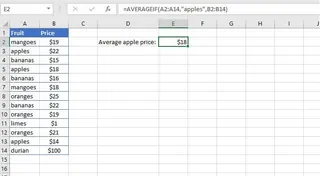
Here, Excel scans column A for "apples" and then averages the corresponding values from column B.
Handling Logical Operators and Multiple Criteria
What if your criteria isn't a simple text match? AVERAGEIF also supports logical operators like >, <, and <> (not equal to). For instance, to find the average of all sales greater than $100, the formula would be:
=AVERAGEIF(B2:B14, ">100")
When your director asks for the average deal size for 'Software' in the 'EMEA' region, a single AVERAGEIF is no longer enough. You need AVERAGEIFS, which handles multiple AND conditions:
=AVERAGEIFS(C2:C1000, A2:A1000, "Software", B2:B1000, "EMEA")
(Where column C is revenue, A is product category, and B is region)
The Limitations of the Formula-Based Approach
While powerful, this traditional method is fraught with challenges:
- Formula Complexity: The formulas can quickly become long and convoluted. Handling
ORlogic (e.g., average for "Apples" OR "Oranges") requires nesting multipleAVERAGEIFfunctions inside anAVERAGEfunction, which is confusing and hard to read. - Rigidity: These formulas are static. If your director follows up with, "Great, now can you exclude sales from last month?", you can't just tweak the result. You have to go back, find the correct cell, and rewrite the formula to add another condition. This back-and-forth kills productivity.
- High Risk of Errors: A single typo—a misplaced comma, an incorrect cell range, or a forgotten quotation mark—can result in a
#DIV/0!or#VALUE!error, or worse, a silently incorrect calculation. DebuggingA2:A1000vs.A2:A1001is a nightmare. - Poor Scalability and Maintenance: If you build a report full of these formulas, it becomes a black box. A new team member will have a hard time understanding the logic, and updating the report becomes a high-risk task.
You're spending more time building the calculation than analyzing the result. There has to be a better way.
The New Approach: Using Excel AI with Excelmatic
Instead of memorizing syntax and wrestling with nested functions, what if you could just ask your spreadsheet for the answer? This is the promise of Excel AI Agents like Excelmatic.

Excelmatic transforms your relationship with data. You upload your Excel or CSV file and interact with it through a chat interface. You describe the analysis you need in plain language, and the AI handles the complex steps of filtering, calculating, and generating results for you.
Let's solve the sales manager's problem using this new approach.
Step-by-Step Guide to Conditional Averages with Excelmatic
1. Upload Your Data File
First, simply drag and drop your sales report (e.g., quarterly-sales.xlsx) into Excelmatic. The AI will parse the data and show you a preview, understanding the headers like 'Region', 'Product Category', and 'Revenue'.

2. Ask for the Average in Natural Language
Now, instead of writing a formula, you just type your question into the chat.
To find the average price for "apples":
What is the average price for apples?
To find the average of sales greater than $100:
Calculate the average of all sales greater than 100.
To answer the director's complex question:
What was the average revenue for the 'Software' category in the EMEA region?
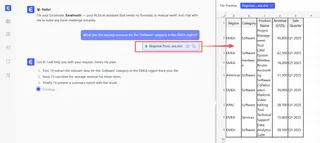
Excelmatic understands the context and conditions, performs the filtering and calculation, and gives you the answer directly.
3. Review and Iterate with Follow-up Questions
This is where the magic happens. The initial answer is just the start of a conversation. Your director's follow-up questions are no longer a chore.
Great. Now can you show me the average revenue for 'Software' and 'Services' combined?
Okay, and what if we exclude any deals made by the 'John Smith'?
Can you create a bar chart comparing the average deal size for each region?
Each question builds on the last, allowing you to explore your data dynamically without ever writing another formula.
4. Export Your Results
Once you have the insight you need, you can download the results—whether it's a simple value, a summary table, or a chart—as a new Excel file. You can also ask Excelmatic to generate the underlying AVERAGEIFS formula for you, which you can copy and paste into your original spreadsheet if needed.
Sample Conversation
Here’s how a typical analysis session might look in Excelmatic:
User: I've uploaded my Q3 sales report. Can you tell me the average revenue per product category?
Excelmatic: Of course. I've calculated the average revenue for each product category and created this summary table:
- Hardware: $850.50
- Software: $1,420.75
- Services: $2,150.00
- Accessories: $150.25
User: Interesting. What's the average revenue for just the 'Software' category in the 'NA' region for deals over $1000?
Excelmatic: The average revenue for 'Software' sales in the 'NA' region that were over $1000 is $1,855.30.
User: Perfect. Can you create a pivot table that shows the average revenue for each sales rep, broken down by region?
Excelmatic: Done. I've generated a pivot table with Sales Reps as rows, Regions as columns, and the average of Revenue as the values. You can download the new Excel file containing this pivot table.
Traditional Method vs. Excelmatic: A Quick Comparison
| Aspect | Traditional AVERAGEIF |
Excelmatic (Excel AI) |
|---|---|---|
| Time to First Result | 5-15 minutes (finding function, writing, debugging) | < 1 minute (type a question) |
| Flexibility | Low. New questions require new formulas. | High. Instantly adapt with follow-up questions. |
| Error Rate | High. Prone to syntax and range errors. | Very Low. The AI handles the syntax. |
| Learning Curve | Moderate to High. Requires learning function syntax. | None. Just describe what you need in language. |
| Collaboration | Difficult. Formulas are hard for others to understand. | Easy. The chat history is a clear log of the analysis. |
FAQ
1. Do I need to know the AVERAGEIF function to use Excelmatic?
Not at all. The entire point is to replace formula knowledge with natural language. You just need to be able to describe the business question you want to answer.
2. Can Excelmatic handle multiple conditions like AVERAGEIFS?
Yes. You can state as many conditions as you need in your prompt. For example, "Find the average sales for 'Product A' in the 'North' region, sold by 'Jane Doe', in the month of 'October'." The AI will interpret this as multiple AND conditions.
3. Is my data secure when I upload it to Excelmatic? Excelmatic is designed with data security in mind. All data is encrypted in transit and at rest, and is not used for training models. For specific compliance needs, always refer to the official privacy policy and terms of service.
4. What happens if my data has blank cells or text in a number column?
Like the AVERAGEIF function, Excelmatic is built to be robust. It typically ignores blank cells and text values when calculating numerical averages, preventing your calculations from breaking due to messy data.
5. Can I get the actual Excel formula from Excelmatic?
Yes. After the AI provides an answer, you can ask it, "Can you give me the Excel formula to get this result?" It will generate the corresponding AVERAGEIF or AVERAGEIFS formula for you to use in your own spreadsheets.
6. Is Excelmatic only for calculating averages? No, it's a full-fledged Excel AI Agent. You can use it to generate formulas, create pivot tables, build charts, clean data, merge sheets, and generate entire reports—all using natural language.
Take Action: Upgrade Your Excel Workflow with Excelmatic
Every minute you spend debugging a complex formula is a minute you're not spending on strategic analysis. The traditional way of working in Excel forces you to be a part-time programmer, translating business logic into rigid, error-prone syntax.
With an Excel AI Agent like Excelmatic, you can stay focused on the "what" and "why" of your data, not the "how." You can answer complex questions in seconds, explore different scenarios on the fly, and deliver insights faster than ever before.
Stop wrestling with formulas. It's time to start a conversation with your data.
Try Excelmatic for free today and upload the very spreadsheet you're working on now. Ask it the question you've been trying to answer with AVERAGEIF, and see how quickly you get your result.