Key takeaways:
- Traditional Excel proficiency requires users to learn and memorize the exact syntax for dozens of formulas like
SUMIFS,VLOOKUP, andIF, a time-consuming and error-prone process. - Excel AI agents like Excelmatic eliminate this manual work by allowing you to describe your calculation or data manipulation needs in natural language, such as "sum the sales for the North region."
- By using Excelmatic, you can drastically reduce the time spent on writing and debugging formulas, minimize syntax errors, and get instant answers to complex data questions, making analysis accessible to everyone.
The Endless Challenge of Mastering Excel Formulas
For anyone working with data, Excel is an indispensable tool. But let's be honest: moving from a simple data entry grid to a powerful analysis dashboard involves a steep learning curve. At the heart of this challenge lies the world of Excel formulas.
Imagine you're a marketing analyst who's just been handed a spreadsheet with thousands of rows of campaign data. Your manager asks for a "quick summary" of performance. You know the answers are in the data, but getting them out is another story. You start asking yourself:
- "To get total sales for a specific region, should I use
SUM,SUMIF, orSUMIFS?" - "I need to pull the product name from another table. Is
VLOOKUPthe right tool? What dolookup_value,table_array, andcol_index_numeven mean? And why does it keep giving me an#N/Aerror?" - "How do I combine a first name and last name into one cell without messing up the spacing?"
- "Now my manager wants to see a 'Pass/Fail' status based on a sales target. I need an
IFstatement, but what if I need to check three different conditions?"
This mental juggling act of remembering function names, argument order, and correct syntax is a daily struggle for millions of Excel users. A single misplaced comma or parenthesis can break an entire calculation, leading to frustrating and time-consuming debugging.
The Manual Method: A Tour of Essential Excel Formulas
To solve these problems traditionally, you'd need to become fluent in a core set of Excel functions. These are the powerful building blocks that allow you to slice, dice, and analyze your data. They generally fall into a few key categories.
1. Basic Aggregation: The Foundations
These are often the first functions anyone learns. They perform fundamental mathematical operations on a range of cells.
=SUM(A2:A100): Adds up all the numbers in a range.=AVERAGE(A2:A100): Calculates the average of the numbers.=COUNT(A2:A100): Counts how many cells in the range contain numbers.
While simple, they are the bedrock of most financial summaries and reports.
2. Conditional Logic: The Brains of Your Spreadsheet
This is where Excel starts to get really smart. Conditional functions perform an action only when specific criteria are met.
=IF(A2>50, "Pass", "Fail"): Checks if a condition is true and returns one value if it is, and another if it's false.=SUMIFS(sum_range, criteria_range1, criteria1, ...): Adds up cells that meet multiple conditions. For example, summing sales (sum_range) for a specific region (criteria_range1, "North") and a specific product (criteria_range2, "Widgets").=COUNTIFS(criteria_range1, criteria1, ...): Counts the number of cells that satisfy multiple criteria.
These functions are incredibly powerful for creating dynamic reports, but their syntax can quickly become complex and difficult to manage, especially with multiple conditions.
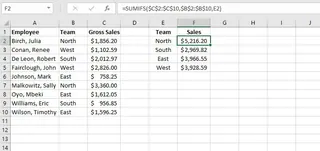 A typical SUMIFS formula requires defining the sum range and multiple criteria ranges, which can be confusing.
3. Lookup & Reference: Finding Your Data
The ability to look up and retrieve data from other tables is a game-changer.
=VLOOKUP(lookup_value, table_array, col_index_num, [range_lookup]): Searches for a value in the first column of a table and returns a corresponding value from another column. It's famous for its utility and infamous for its rigidity and error messages.
4. Text Manipulation: Cleaning and Combining
Data rarely comes in a perfect format. These functions are essential for data cleaning.
=TRIM(A2): Removes all extra spaces from a text string.=CONCAT(A2, " ", B2): Joins text from multiple cells into one (e.g., combining "First Name" and "Last Name").=LEFT(A2, 3)/=RIGHT(A2, 4)/=MID(A2, 4, 3): Extracts a specific number of characters from the left, right, or middle of a text string.
The Limitations of the Manual Approach
While mastering these formulas is a valuable skill, it comes with significant drawbacks:
- Steep Learning Curve: It takes hours of practice to become proficient and confident.
- Prone to Errors: A forgotten
$for an absolute reference or an incorrect range can lead to wrong calculations that are hard to spot. - Rigid and Inflexible: If your manager asks a follow-up question ("Great, now can you show me that by quarter?"), you often have to start over and build a new formula.
- Difficult to Maintain: Handing over a spreadsheet filled with complex, nested formulas to a colleague can be a nightmare.
What if you could get the power of these formulas without the pain of writing them?
The New Way: Using Excel AI (Excelmatic) for Instant Calculations
This is where Excel AI agents like Excelmatic change the game. Excelmatic is a tool that lets you use plain, conversational language to perform complex data analysis. Instead of being an Excel formula expert, you only need to be an expert in the question you want to ask.

The process is simple: upload your file, ask a question, and get your answer.
Step-by-Step: From Question to Answer
Let's revisit the challenges from before and see how Excelmatic solves them in seconds.
1. Upload Your Data File
First, you upload your Excel (.xlsx) or CSV file to Excelmatic. It's best practice to have clear, simple headers for your columns (e.g., Date, Region, Sales Rep, Sales Amount).

2. Ask in Plain language Instead of typing formulas, you just type your request into the chatbox. Here’s how you can replicate the functionality of those 12 essential formulas:
Instead of
=SUMIFS(...):Calculate the total sales for the 'North' region where the sales amount was over $1,500.
Instead of
=COUNTIFS(...):How many sales did the 'North' team make for more than $1,500?
Instead of
=VLOOKUP(...):I have another sheet with employee IDs and names. In my sales data, can you add a column with the employee name that corresponds to each employee ID?
Instead of
=CONCAT(...)and=TRIM(...):Create a new column called 'Full Name' by combining the 'First Name' and 'Last Name' columns. Make sure there's a single space between them and no extra spaces at the beginning or end.
Instead of
=LEFT(...)or=MID(...):Create a new column called 'Area Code' by extracting the first 3 digits from the 'Phone Number' column.
Instead of
=AVERAGE(...):What is the average sales amount for each region?

3. Review and Iterate on the Results Excelmatic won't just give you a single number. It will present the result in a clear format, often a table. More importantly, it understands context, allowing you to have a conversation with your data.
You can ask follow-up questions to refine your analysis:
- "Great. Now sort that table by total sales from highest to lowest."
- "Can you visualize this as a bar chart?"
- "Filter this to only show data for Q3 2024."
This iterative process is impossible with traditional formulas, where each new question requires a new, manually-built formula.
4. Export and Use Your Results Once you're happy with the analysis, you can download the results as a new Excel file. The file will contain the generated tables, charts, or even the exact Excel formula that the AI created for you. You can copy this formula and use it in your original workbook, making it a great way to learn on the job.
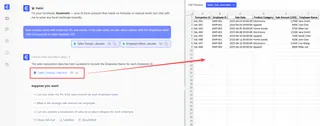
A Sample Conversation with Excelmatic
Here’s what a typical workflow might look like:
User: I have a list of sales transactions with columns for 'Sales Rep', 'Region', and 'Sales Amount'. Can you show me the total sales for each rep in the 'North' region?
Excelmatic: Sure. I've created a summary table showing the total sales for each representative in the 'North' region. Is there anything else you'd like to analyze?
User: Great. Now, can you add a new column that counts how many sales each of them made that were over $2,000?
Excelmatic: Done. I've added a column named 'Sales Count > $2000' to the summary table. You can now see both the total sales and the count of high-value sales for each rep. Would you like to visualize this as a chart?
Traditional Formulas vs. Excelmatic: A Quick Comparison
| Aspect | Traditional Manual Method | Excelmatic AI Method |
|---|---|---|
| Effort | Memorize syntax, write complex formulas, debug errors. | Describe your goal in plain language. |
| Time | 5-30 minutes for a complex SUMIFS or VLOOKUP. |
Less than a minute for the same task. |
| Flexibility | Rigid. New questions require new formulas. | Highly flexible. Refine results with follow-up questions. |
| Skill Level | Requires intermediate to advanced Excel knowledge. | Requires only knowing what question you want to ask. |
| Error Rate | High risk of syntax errors, incorrect ranges, or logic flaws. | Drastically reduced, as the AI handles syntax and logic. |
FAQ
1. Do I need to know any Excel formulas to use Excelmatic? No, not at all! The main purpose of Excelmatic is to handle the formula generation for you. You just need to describe the outcome you want. It's a great tool for both beginners who feel intimidated by formulas and experts who want to save time.
2. Is my data safe when I upload it to Excelmatic? Yes. Excelmatic is built with data security in mind. Your files are processed securely, and the platform adheres to strict privacy policies. Your data is not used for training models without your consent.
3. Can Excelmatic handle complex, nested formulas?
Absolutely. You can describe a multi-step logical process, like "If the sale amount is over $1000 and the region is 'West', mark it as 'High Value', otherwise mark it as 'Standard'." Excelmatic will generate the corresponding nested IF statement.
4. What if my data is messy, like with extra spaces or inconsistent capitalization? You can ask Excelmatic to clean it for you. Simply say, "Trim all extra spaces from the 'Product Name' column" or "Make all text in the 'Category' column lowercase."
5. Can I see and use the formulas Excelmatic generates? Yes. Excelmatic often provides the formula it used to get the answer. You can copy this formula directly into your own Excel sheet. This is a fantastic way to learn how advanced formulas are constructed without the initial frustration.
Stop Typing, Start Analyzing: Upgrade Your Excel Workflow Today
The days of wrestling with formula syntax and spending hours debugging a VLOOKUP are over. While knowing basic Excel formulas is a useful skill, it no longer has to be a barrier to powerful data analysis.
By embracing an Excel AI agent, you shift your focus from "How do I write this formula?" to "What question do I need to answer?" This allows you to uncover insights faster, respond to ad-hoc requests in seconds, and spend more of your valuable time on strategic thinking, not manual data wrangling.
Ready to say goodbye to formula frustration? Try uploading your first spreadsheet to Excelmatic and see the magic for yourself.