Key takeaways:
- Automating tasks in Excel traditionally requires learning complex VBA code, including the
Rangeobject, loops, and variables, which is time-consuming and difficult to maintain. - Excel AI tools like Excelmatic replace the need for VBA scripts with simple, natural language commands. You just describe what you want to do with your data ranges, and the AI does the work.
- This no-code approach drastically reduces development time, eliminates frustrating debugging sessions, and empowers any team member to automate Excel tasks, not just VBA experts.
Problem background & pain points
For many business professionals, Excel is the command center for data. But when repetitive tasks start consuming hours each week, you naturally look for a way to automate. Imagine you're a financial analyst who receives a raw sales data export every Monday. Your weekly ritual involves:
- Identifying the main data table, which has a different number of rows each week.
- Copying this entire data block from a "Raw-Data" sheet to a new "Analysis" sheet.
- On the "Analysis" sheet, finding all sales transactions over $50,000 and highlighting their rows in green for a management review.
- Standardizing the 'Region' column by converting all text to uppercase for consistent pivot table reporting.
Doing this manually is not just tedious; it's a recipe for errors. A missed row or a copy-paste mistake can skew your entire analysis. The traditional path to automation in Excel leads you straight to one place: Visual Basic for Applications (VBA). But this path is fraught with its own set of challenges.
You start by recording a macro, only to find the recorded code is rigid and breaks if anything changes. To make it dynamic, you're forced to dive into the world of VBA programming—learning about objects like Range and Worksheet, properties like .CurrentRegion, and control structures like For Each loops. Suddenly, a simple business task has turned into a software development project.
The Traditional Excel Solution: Steps & Limitations
The "power user" approach to automating the scenario above is to write a VBA macro. This involves opening the VBA Editor and writing code that explicitly tells Excel every single step to take. While powerful, this method is far from user-friendly.
A typical VBA script to solve our problem would involve several key components.
The VBA Workflow
1. Defining Worksheets and Finding the Data Range:
First, you'd need to write code to handle the dynamic size of your data. A common technique is using the CurrentRegion property, which selects a block of data surrounded by blank rows and columns.
' Copy the entire data region from Raw-Data to Analysis sheet
Worksheets("Raw-Data").Range("A1").CurrentRegion.Copy Destination:=Worksheets("Analysis").Range("A1")
This single line looks simple, but it relies on your data being perfectly clean. An accidental blank row in the middle of your data can cause CurrentRegion to select only a fraction of your table, silently corrupting your output.
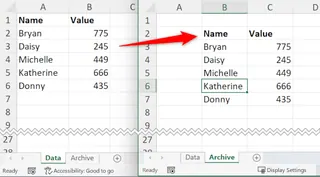
2. Looping Through Cells for Conditional Formatting: Next, to highlight high-value sales, you can't just tell Excel to "find sales over $50,000." You must write a loop that checks every single cell in the sales column, one by one, and then applies formatting if the condition is met.
Dim LastRow As Long
Dim cell As Range

' Find the last row of data in the Analysis sheet
LastRow = Worksheets("Analysis").Cells(Rows.Count, 1).End(xlUp).Row

' Loop through each cell in the sales column (e.g., column E)
For Each cell In Worksheets("Analysis").Range("E2:E" & LastRow)
    If cell.Value > 50000 Then
        ' Highlight the entire row in light green
        cell.EntireRow.Interior.Color = RGB(204, 255, 204)
    End If
Next cell
This requires you to know the exact column letter (E) and to write code to find the last row dynamically. If someone inserts a new column, the script breaks.
3. Looping Again to Standardize Text: Finally, to convert the region names to uppercase, you need another loop.
' Loop through each cell in the region column (e.g., column C)
For Each cell In Worksheets("Analysis").Range("C2:C" & LastRow)
    cell.Value = UCase(cell.Value)
Next cell
You've now written nearly 20 lines of code for a task that takes 2 minutes manually.
The Limitations of the VBA Approach
While this macro works, it creates a new set of problems:
- High Barrier to Entry: You're no longer just an analyst; you're a part-time programmer. This excludes the vast majority of your team from building or even understanding the automation.
- Brittleness: The code is rigidly tied to sheet names ("Raw-Data", "Analysis") and column structures. If the source file changes its naming convention next week, the macro will fail with a cryptic error message.
- Time-Consuming Maintenance: When the script breaks, someone has to open the VBA editor, decipher the code, and debug it. This is often more time-consuming than doing the task manually.
- A "Black Box" for the Team: If the person who wrote the macro leaves the company, the script becomes an untouchable black box. No one dares to modify it, and the valuable automation eventually becomes obsolete.
The New Solution: Using Excel AI with Excelmatic
What if you could achieve the same automation without writing a single line of code? This is where Excel AI agents like Excelmatic come in. Instead of programming instructions, you simply have a conversation with an AI that understands your data and your goals.

Excelmatic works by allowing you to upload your Excel or CSV file and then use a chat interface to request analysis, transformations, formulas, charts, and reports. The AI handles the complex logic behind the scenes.
Let's revisit our analyst's weekly task, this time using Excelmatic.
Step 1: Upload Your Data File
First, you drag and drop your raw_sales_data.xlsx file directly into the Excelmatic web interface. The AI processes the file and shows you a preview of your data, ready for your instructions.

Step 2: Describe Your Goal in Plain language
Instead of writing loops and referencing cell ranges, you just type what you want to do. You can chain commands together or issue them one by one.
You could start with the copy operation:
Copy all the data from the 'Raw-Data' sheet and place it in a new sheet named 'Analysis'.
Then, apply the conditional formatting:
In the 'Analysis' sheet, for every row where the 'Sales Amount' is over 50000, highlight the entire row in light green.
And finally, standardize the text:
Now, in the 'Analysis' sheet, convert all the text in the 'Region' column to uppercase.
The AI understands context. It knows what "Analysis sheet" refers to because you just created it. It identifies the "Sales Amount" and "Region" columns by their headers, so you don't need to worry about column letters like E or C.

Step 3: Review, Iterate, and Refine
After each command, Excelmatic presents the result. You can instantly see the new 'Analysis' sheet with the highlighted rows and uppercase text. This interactive process allows for easy refinement.
Maybe you decide green isn't the right color. You can simply follow up:
Actually, change the highlight color for those rows to light yellow.
This conversational iteration is impossible with a rigid VBA script. With VBA, a simple change like this requires finding the right line of code (.Color = RGB(...)), looking up a new color code, and re-running the macro. With Excelmatic, it's just one more sentence.
Step 4: Export Your Final Report
Once you're satisfied, you can download the fully processed Excel file with a single click. It contains the new "Analysis" sheet with all your transformations applied, ready to be shared with your team.
User vs. Excelmatic: A Dialogue Example
Here’s how that entire workflow might look as a conversation:
User: I've uploaded my weekly sales data. Please copy the table from the 'Raw-Data' sheet to a new sheet and name it 'Analysis'.
Excelmatic: Done. I've created the 'Analysis' sheet with the data from 'Raw-Data'. What's next?
User: On the 'Analysis' sheet, find every sale over $50,000 and highlight the whole row in light green.
Excelmatic: I have applied conditional formatting to the 'Analysis' sheet. All rows where the 'Sales Amount' column exceeds 50,000 are now highlighted in light green.
User: Perfect. One last thing: please convert the 'Region' column to all uppercase letters for consistency.
Excelmatic: The 'Region' column has been converted to uppercase. The file is ready. Would you like me to generate a summary pivot table or should we download the file?
Traditional VBA vs. Excelmatic: A Quick Comparison
| Aspect | Traditional VBA | Excelmatic (AI) |
|---|---|---|
| Time to Implement | Hours to days (including learning/debugging) | Minutes |
| Required Skill | VBA programming & object model knowledge | Conversational language |
| Flexibility | Low. Code is rigid and breaks easily. | High. Iterate and adjust with simple chat. |
| Maintenance | Difficult. Requires a developer to debug. | Effortless. Just modify your plain language prompt. |
| Accessibility | Only for VBA experts. | Accessible to anyone on the team. |
FAQ
Do I need to know any VBA or formulas to use Excelmatic? No, not at all. Excelmatic is designed to be a no-code tool. You just need to be able to describe your business logic in plain language. The AI translates your requests into the necessary data manipulations.
Does Excelmatic modify my original Excel file? No. Your original file is never modified. Excelmatic works on a copy of your data in a secure cloud environment. You can then download the transformed file as a new Excel workbook.
What if my data is messy or has inconsistent column names? Excelmatic is great for data cleaning. You can ask it to perform tasks like "remove all blank rows," "trim leading and trailing spaces from all cells," or "rename the column 'Sales_Amt' to 'Sales Amount'." You can clean your data as the first step before analysis.
Can Excelmatic handle dynamic data ranges like VBA's CurrentRegion?
Yes, and it does so automatically. The AI is designed to intelligently detect the boundaries of your data tables, so you rarely need to specify ranges like A1:G500. Just refer to the columns by their header names.
Is it safe to upload my company's financial data to Excelmatic? Excelmatic is built with data security as a priority, employing industry-standard encryption for data in transit and at rest. For specific details on data handling and privacy, it's always best to consult the official privacy policy on the website.
Take Action: Upgrade Your Excel Workflow Today
Every hour you spend wrestling with VBA syntax or manually repeating a task is an hour you're not spending on strategic analysis. The traditional methods of Excel automation, while powerful, belong to a different era. They create dependencies on a small group of technical experts and result in fragile, hard-to-maintain solutions.
By embracing an Excel AI agent, you can democratize automation. You can empower your entire team to build robust, flexible workflows in minutes, not days. Stop being the "VBA mechanic" for your department and start focusing on the insights hidden in your data.
Ready to see for yourself? Try Excelmatic for free today. Upload one of the spreadsheets you work on every week and try a few of the prompts from this article. You'll be amazed at how much time you can get back.