Key takeaways:
- Manually applying Excel Cell Styles and Conditional Formatting to create professional reports is a repetitive, time-consuming process that often leads to inconsistencies.
- An Excel AI agent like Excelmatic automates this entire process, interpreting natural language commands like "color all negative profits red" to apply complex formatting instantly.
- Using Excelmatic drastically reduces the time spent on formatting from hours to minutes, ensures 100% consistency, and allows you to create visually appealing, data-driven reports without needing to master complex Excel features.
Problem Background & Pain Points
Imagine you're a financial analyst or a sales manager, and it's the end of the month. You have a raw data export of sales performance, project budgets, or inventory levels. Your task is to transform this bland wall of numbers into a professional, easy-to-read report for your leadership team. You know that visual cues are critical: positive variances should be green, negative ones red, headers should stand out, and totals need to be clearly marked.
The goal is simple, but the execution in Excel is anything but. You find yourself sinking time into a repetitive cycle of clicks: select a range, navigate to the Home tab, find the right font color, apply a background fill, set a border, and then repeat for the next section. You try to use the built-in "Cell Styles" for consistency, but you still have to manually apply them everywhere. For data-dependent colors, you have to dive into the even more complex world of "Conditional Formatting," setting up rules and formulas for every condition.
This manual process is not just tedious; it's a minefield of potential errors. Did you apply the "Bad" style to the correct cells? Is your conditional formatting rule for "Top 10%" applied to the right data range? When next month's data arrives, you have to do it all over again, hoping you remember the exact shades of green and red you used last time to maintain consistency. This is a classic case of high-effort, low-value work that distracts you from what truly matters: analyzing the data itself.
The Traditional Excel Solution: Steps & Limitations
To tackle this, experienced Excel users typically rely on a combination of two features: Cell Styles and Conditional Formatting. While powerful, they represent a manual, rule-based approach that comes with significant limitations.
A typical workflow might look like this:
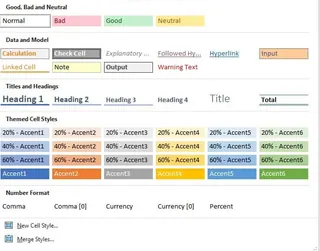
Formatting Headers and Totals: You'd start by selecting your header row, navigating to Home > Styles > Cell Styles, and choosing a style like 'Heading 1'. You'd do the same for the 'Total' row at the bottom, applying the 'Total' style. This provides some basic structure.
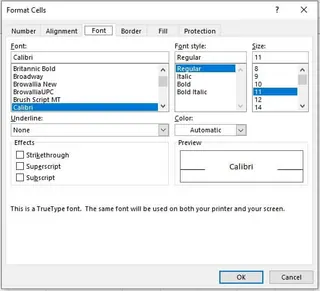
Creating Custom Styles: If the built-in styles don't match your company's branding, you'd have to create your own. This involves opening the 'New Cell Style' dialog, clicking the 'Format...' button, navigating through multiple tabs (Font, Border, Fill, etc.) to define your style, giving it a name, and saving it.
Applying Data-Driven Formatting: Static cell styles can't change based on a cell's value. For that, you need Conditional Formatting. To highlight sales figures above a certain target, you would select the data, go to Home > Conditional Formatting > Highlight Cells Rules > Greater Than..., and then enter the target value and choose a format. For negative numbers, you'd create another rule. For the top 5 performers, yet another rule.
This traditional method, while functional, is deeply flawed in a modern, fast-paced work environment:
- High Learning Curve: You need to master two separate, complex features (Cell Styles and Conditional Formatting) and know when to use which.
- Incredibly Time-Consuming: Setting up multiple rules, creating custom styles, and applying them across large datasets is a significant time sink.
- Rigid and Hard to Modify: What if your manager asks to see the "Top 7" performers instead of the "Top 5"? You have to dig into the Conditional Formatting Rule Manager, find the right rule, edit it, and re-apply. There's no quick way to adjust on the fly.
- Prone to Errors: Applying rules to the wrong range, creating conflicting formats, or forgetting to update a style can lead to a misleading and unprofessional-looking report.
- Poor Scalability: When you get a new dataset next week, you have to either painstakingly copy formats over or start the entire process from scratch.
You're forced to act like a machine, translating business logic ("show me what's good and what's bad") into a rigid set of computer instructions.
The New Solution: Using an Excel AI Agent (Excelmatic)
Instead of forcing you to learn Excel's language of menus and rules, an Excel AI agent like Excelmatic learns yours. It flips the script: you simply describe the final look you want in plain language, and the AI handles all the complex steps of applying styles and conditional formatting in the background.

The entire process is transformed from a tedious manual task into a simple, conversational workflow.
Step-by-Step: Formatting a Report with Excelmatic
Let's take the same sales report and format it using Excelmatic in a fraction of the time.
1. Upload Your Data File
First, drag and drop your raw Excel or CSV file directly into the Excelmatic chat interface. The AI will instantly read your data and display a preview, confirming it understands your columns and rows.

2. Describe Your Desired Formatting in Natural Language
This is where the magic happens. Instead of clicking through menus, you just type what you want. You can start broad and get more specific.
Here are some example prompts you could use for a sales report:
- "Make this report look more professional. Bold the headers and apply a currency format to the 'Sales Amount' and 'Profit' columns."
- "In the 'Profit Margin' column, highlight all cells with a value less than 0 in light red, and all cells with a value greater than 20% in light green."
- "Find the top 5 sales reps by 'Total Sales' and highlight their entire rows in yellow."
- "Add a 'Total' row at the bottom that sums up the numerical columns, and make this row bold."

3. Review and Iterate on the Result
Excelmatic doesn't just give you a final product; it engages in a conversation. It will apply the formatting and present the updated table for your review. From here, you can easily make adjustments.
The "dialogue" format is perfect for refining your report without starting over. You can continue the conversation with follow-up requests.
4. Export the Finished Report
Once you're happy with the result, you can download the fully formatted workbook as a new .xlsx file with a single click. All the conditional formatting rules and styles are embedded, so you can open it in desktop Excel and it will look and behave exactly as you specified.

Dialogue Example: User vs. Excelmatic
Here's how a real conversation might look when formatting a report:
User: I've uploaded my monthly sales data. Please format the 'Variance to Target' column so that any negative number has a red font color and any positive number has a green font color.
Excelmatic: Done. I have applied conditional formatting to the 'Variance to Target' column. Negative values are now red, and positive values are green. Is there anything else you'd like to format?
User: Great. Now, please make the header row (Row 1) bold with a grey background fill. Also, find the person with the highest 'Total Sales' and bold their entire row.
Excelmatic: I have formatted the header row as requested. The row for the top sales performer, Sarah Johnson, has been bolded. Would you like to highlight it with a color as well?
User: No, just bold is fine. Please export this as a new Excel file named 'Formatted Sales Report - May'.
Excelmatic: Your file is ready for download.
Traditional Method vs. Excelmatic: A Quick Comparison
| Aspect | Traditional Excel (Manual Formatting) | Excelmatic (AI Agent) |
|---|---|---|
| Time | 30-60 minutes for a complex report | 2-5 minutes |
| Effort | High. Requires dozens of clicks, menu navigation, and rule creation. | Low. Requires typing a few simple sentences. |
| Flexibility | Low. Changes require manually editing complex rules. | High. Changes are made through simple follow-up conversation. |
| Learning Curve | Steep. Requires knowledge of Cell Styles and Conditional Formatting. | Almost zero. If you can describe what you want, you can use it. |
| Consistency | Difficult to maintain across different reports and time periods. | Guaranteed. The AI applies the same logic every time. |
FAQ
Q1: Do I need to know about Excel's Cell Styles or Conditional Formatting to use Excelmatic? No, not at all. That's the primary benefit. You just describe the visual outcome you want (e.g., "make bad numbers red"), and Excelmatic handles the underlying Excel features for you.
Q2: Will Excelmatic modify my original Excel file? No. Excelmatic works on a copy of your data within its secure environment. Your original file remains untouched on your computer. You can then download the newly formatted version as a separate file.
Q3: Is my company's data safe if I upload it to Excelmatic? Excelmatic is designed with data security as a top priority, employing industry-standard encryption and privacy protocols. For specific details on data handling and enterprise-grade security, it's always best to consult the official privacy policy on the website.
Q4: Can the formatting applied by Excelmatic be edited later in desktop Excel? Yes. When you download the file, Excelmatic has applied standard Conditional Formatting rules and cell styles. You can open the file in Microsoft Excel and view, edit, or remove these rules using the standard Conditional Formatting Manager if you wish.
Q5: What if my data isn't perfectly clean? Can Excelmatic still format it? In most cases, yes. Excelmatic is robust at interpreting data. Furthermore, you can even ask it to clean the data before formatting. For example: "First, remove any blank rows, then format the report as we discussed."
Q6: Is this only for coloring numbers? What other formatting can it do? Excelmatic can handle a wide range of formatting tasks, including changing fonts (size, color, bold, italics), setting cell borders, applying number formats (currency, percentage, date), changing alignments, adjusting column widths, and more—all through natural language commands.
Take Action: Upgrade Your Excel Workflow Today
Stop wasting valuable hours on the tedious, repetitive task of formatting Excel sheets. Every minute you spend clicking through style menus is a minute you're not spending on strategic analysis and decision-making. The opportunity cost of manual formatting is too high to ignore.
By embracing an Excel AI agent, you can reclaim that time and elevate the quality and consistency of your reports. Imagine being able to respond to a last-minute request for a formatted report in minutes, not hours.
Ready to see it in action? Try Excelmatic for free. Upload one of the reports you're currently working on and use one of the prompts from this article. Experience firsthand how a simple conversation can transform a wall of data into a professional, presentation-ready report.