Key takeaways:
- Built-in Excel AI assistants often require multiple expensive subscriptions, complex setup, and force you to store files in specific cloud locations, creating a high barrier to entry.
- Excelmatic simplifies this entire process: just upload your Excel or CSV file and start analyzing with natural language, with no complicated installation or file migration required.
- By using a dedicated Excel AI agent, you can move beyond simple formula generation to perform deep, multi-step conversational analysis, saving hours of manual work and gaining more accurate insights.
Problem background & pain points
The promise of artificial intelligence within Microsoft Excel has generated immense excitement. For millions of professionals who spend their days wrangling spreadsheets, the idea of an AI assistant that can automate tedious tasks, generate complex formulas, and visualize data using simple language commands sounds like a dream come true.
Imagine you're a marketing manager with a large CSV file of campaign results, a sales analyst tracking regional performance, or a financial planner consolidating budget data. Your goal is the same: to quickly extract meaningful insights from your data without getting bogged down in manual processes. You want to ask questions like, "Which products had the highest growth last quarter?" or "Show me the top 5 sales reps by total revenue," and get an instant, accurate answer.
This is the future that built-in AI assistants promise. However, many early adopters are discovering that the reality is fraught with friction. The initial excitement often gives way to frustration due to complex setup procedures, hidden costs from multiple subscriptions, and rigid requirements for data formatting and storage. Instead of a seamless assistant, users often find a tool that only works under perfect conditions, leaving them to handle real-world, messy data the old-fashioned way.
The "Built-in" AI Solution: Steps & Limitations
The first wave of Excel AI has arrived in the form of "built-in" assistants that live inside the Excel ribbon. These tools are designed to interpret your natural language prompts and translate them into Excel actions, such as creating formulas, applying formatting, or generating basic charts. While innovative, this approach comes with significant limitations that can hinder productivity more than help it.
The Standard Workflow with a Built-in Assistant
Getting started with a typical integrated AI tool involves several steps:
- Subscription & Licensing: First, you need an active Microsoft 365 subscription. On top of that, you must purchase a separate, often costly, monthly subscription for the AI assistant itself. This dual-cost structure can be a major barrier for freelancers, small businesses, or even entire departments on a tight budget.
- Installation and Activation: After subscribing, you may need to manually update your Office license, sign out and back in, and restart your applications multiple times for the AI feature to even appear.
- Mandatory Cloud Storage: These assistants typically cannot work with local files on your computer. You are required to upload your workbook to OneDrive or SharePoint and ensure "AutoSave" is turned on. This disrupts the workflow of anyone used to working with downloaded CSVs or local drafts.
- Strict Data Formatting: For the AI to understand your data, it must be formatted as an official Excel Table. It struggles with simple data ranges, unstructured information, merged cells, or blank rows—all common features of real-world spreadsheets.
The Limitations of this Approach
While helpful for simple tasks, this integrated model reveals several fundamental weaknesses when faced with complex analytical needs.
- High Barrier to Entry: The combination of multiple subscriptions, administrative hurdles, and mandatory cloud migration makes it difficult and expensive to get started.
- Data Rigidity: The strict requirement for perfectly structured "Excel Tables" stored in a specific cloud service makes quick, ad-hoc analysis nearly impossible. Have a messy CSV you just downloaded? You'll have to clean it and upload it before the AI will even look at it.
- Shallow Analysis: These tools excel at one-off commands like "sum this column" or "highlight top 10%." However, they lack the contextual memory for true, multi-step analytical conversations. Asking a follow-up question often feels like starting over. They act more like a voice-controlled function library than a true data analyst.
- Workflow Disruption: Instead of a fluid conversation, the process is a rigid cycle of
prompt -> apply -> prompt -> apply. It's often faster for an experienced user to perform the actions manually than to perfectly phrase a prompt for the AI.
A Better Way: Using a Dedicated Excel AI Agent (like Excelmatic)
What if you could have all the power of AI without the setup headaches and limitations? This is where dedicated Excel AI agents like Excelmatic change the game. Instead of being a feature bolted onto Excel, Excelmatic is a specialized platform built from the ground up for conversational data analysis.
The Excelmatic Approach
Excelmatic is a web-based AI agent designed to be your data analysis partner. The workflow is intuitive and powerful:
- Upload Your File: Drag and drop any Excel (.xlsx, .xls) or .csv file.
- Start a Conversation: Ask questions about your data in plain English.
- Get Instant Results: The AI analyzes your data and generates tables, formulas, charts, and insights.
- Iterate and Refine: Continue the conversation to dig deeper, clean data, or change your analysis.
- Export Your Work: Download a new Excel file containing all the results.
This approach directly addresses the pain points of built-in assistants. There are no multiple subscriptions, no license updates, no forced cloud migration, and it's designed to work with data in any format, messy or clean.
Step-by-Step: Solving Your Analysis Tasks with Excelmatic
Let's revisit the goal of quickly analyzing a sales report. Here’s how you would do it in Excelmatic.

Step 1: Upload Your Data
Simply visit the Excelmatic website and upload your sales report. It can be a raw CSV export from your CRM or a partially organized Excel file. No need to format it as a Table or save it to OneDrive.

Step 2: Ask Questions in Plain Language
Start chatting with the AI. You can give it a series of commands to perform a complete analysis.
Here are a few example prompts:
- "First, remove any duplicate rows from the dataset."
- "Summarize the total 'Sale Amount' by 'Region' and sort the regions from highest to lowest sales."
- "Create a new column named 'Commission' which is 5% of the 'Sale Amount' if the amount is over $5,000, and 2% otherwise."
- "Generate a pivot table that shows sales quantity by 'Product Category' for each month."
- "Create a bar chart to visualize the total sales for each 'Sales Rep'."
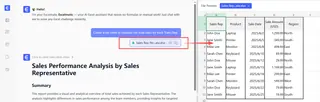
Step 3: Iterate and Refine Through Conversation
This is where Excelmatic truly shines. Your analysis is a continuous dialogue. The AI remembers the context of your previous questions.
If the initial bar chart isn't quite right, you can simply say:
- "Okay, now filter that chart to only show the 'East' and 'West' regions."
- "Change it to a stacked bar chart and add data labels."
- "Can you calculate the year-over-year growth for each product category?"
This conversational flow allows you to explore your data organically, just as you would with a human data analyst.
Step 4: Export Your Results
Once you're satisfied, you can download a new Excel workbook. This file will contain your original data, plus new sheets with the pivot tables, summary data, and charts you requested. You can also copy the exact formulas generated by the AI and paste them into your own spreadsheets.
Sample Conversation: From Raw Data to Insight
Here’s what a real workflow could look like in Excelmatic:
User: I've uploaded my Q3 customer feedback data. It's a bit messy. Can you first identify any rows with blank comments and remove them?
Excelmatic: I have identified and removed 42 rows with blank comments. The cleaned dataset now has 1,288 rows. What would you like to do next?
User: Great. Now, create a pivot table showing the average 'Satisfaction Score' for each 'Product' and 'Region'.
Excelmatic: I have created the pivot table. It shows the average satisfaction scores, broken down by product and region. The "Alpha Widget" in the "North" region has the highest average score of 4.8.
User: Interesting. Can you visualize the results for the "Alpha Widget" across all regions using a column chart? And highlight the region with the lowest score in red.
Excelmatic: Certainly. Here is a column chart visualizing the average scores for the "Alpha Widget" in each region. I have highlighted the "South" region in red, as it has the lowest score of 3.2. The new chart and pivot table are available for download in the updated Excel file.
Built-in AI vs. Excelmatic: A Quick Comparison
| Feature | Built-in AI Assistant (e.g., Copilot) | Excelmatic (Dedicated AI Agent) |
|---|---|---|
| Setup & Cost | Requires multiple, often expensive, subscriptions. Complex activation. | Single, straightforward platform. No installation needed. |
| Data Flexibility | Requires structured Excel Tables stored on OneDrive/SharePoint. | Accepts raw Excel/CSV files from your local computer. Handles messy data. |
| Analytical Depth | Best for single, discrete tasks (e.g., one formula, one chart). | Enables multi-step, conversational analysis with contextual memory. |
| Workflow | Rigid prompt-apply cycle. Limited ability to refine results. | Fluid, iterative conversation. Easily refine and build upon previous results. |
| Learning Curve | Still benefits from knowing underlying Excel functions. | Focus is entirely on describing your business needs in natural language. |
FAQ
Do I need to be an Excel expert to use Excelmatic? Not at all. Excelmatic is designed for users of all skill levels. If you can describe what you want to do with your data in plain English, you can use Excelmatic to get it done.
Will Excelmatic change or delete my original file? No. Your original file remains untouched on your computer. Excelmatic works on a secure copy of your data in its environment, and you can download the results as a new file.
What if my data is messy and unstructured? Excelmatic is built to handle the realities of messy data. You can ask the AI to perform cleaning tasks like removing duplicates, filling in blank cells, splitting columns, or standardizing text formats as the first step in your analysis.
Can I use the formulas from Excelmatic in my own spreadsheets? Absolutely. Excelmatic not only performs the calculation but also shows you the exact Excel formula it used. You can copy this formula and paste it directly into any Excel workbook.
Is it safe to upload my company's data to Excelmatic? Excelmatic is committed to data privacy and security. All data is processed in a secure, isolated environment. For detailed information, please refer to the privacy and security policies on the official website.
How is Excelmatic different from Excel's built-in Copilot? While both use AI, the approach is fundamentally different. Copilot is a feature within Excel, inheriting its constraints. Excelmatic is a dedicated, specialized platform for Excel data analysis. This allows for a more flexible, powerful, and conversational workflow without the setup hassles, subscription complexities, and data format restrictions of built-in tools.
Take Action: Upgrade Your Excel Workflow with Excelmatic
Stop wrestling with complex setups, rigid constraints, and limited AI assistants that only scratch the surface of what's possible. The time you waste trying to get a built-in tool to work is time you could be spending on strategic, high-value analysis.
A dedicated Excel AI agent like Excelmatic empowers you to work at the speed of thought. You can clean data, perform complex analysis, generate insightful visualizations, and create reports in minutes, not hours.
Ready to experience the difference? Try Excelmatic today by uploading your first spreadsheet. Use some of the prompts from this article as a starting point and discover how a true AI data partner can transform your Excel workflow.