Key takeaways:
- Automating repetitive Excel tasks traditionally requires learning VBA and navigating its complex, dated editor, which is a significant barrier for most business users.
- Excel AI tools like Excelmatic offer a revolutionary alternative, allowing you to perform complex automation by simply describing your needs in natural language, no coding necessary.
- By switching from VBA to an AI-powered approach, you can slash task completion time from hours to minutes, eliminate coding errors, and gain the flexibility to adapt your workflows on the fly.
The Repetitive Task Trap: Why Excel Users Turn to Automation
Picture this: It's the end of the month, and you're faced with the same daunting task again. You have to download three different sales reports, combine them into one master sheet, clean up the formatting, calculate subtotals for each region, and then create a summary chart for your manager's presentation. This manual process takes you three hours, it's mind-numbingly dull, and you're always worried about a copy-paste error skewing the entire report.
This scenario is a daily reality for millions of professionals in finance, marketing, HR, and operations. You know there has to be a better way. You've heard whispers of "macros" and "VBA" as the ultimate solution for Excel automation. The promise is alluring: a single click to run a script that does all the heavy lifting for you.
But then you open the door to VBA and are met with a wall of complexity. This is the core pain point: the desire for automation is high, but the traditional tools to achieve it were built for developers, not for the everyday Excel user.
The Traditional Path: Wrestling with the VBA Editor
For decades, Visual Basic for Applications (VBA) has been the go-to answer for serious Excel automation. It's a powerful programming language that lives inside Excel. To write or edit this code, you must use the Visual Basic Editor (VBE).
A Quick Tour of the Traditional Battlefield
For those who have dared to venture, the journey into VBA automation typically looks like this:
Enable the Developer Tab: First, you have to dig into Excel's options to even make the "Developer" tab visible on your ribbon.
Open the VBE: You then click "Visual Basic" or use the shortcut
Alt + F11, which opens a completely new window that looks like a software development tool from the late 90s.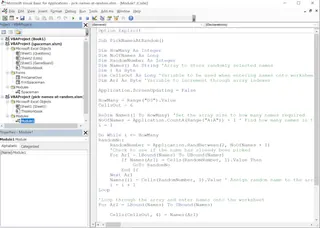
Navigate the Components: You're confronted with several panes:
- Project Explorer: Lists all your open workbooks and their components (sheets, modules). This is where you manage your code files.
- Properties Window: Shows settings for the selected item, which is often confusing for beginners.
- Code Window: The main area where you actually write, view, and edit the VBA code.
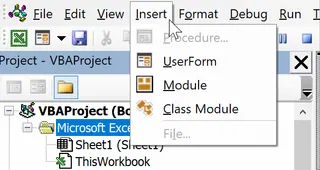
- Modules: You learn that your code needs to be stored in "modules," which you have to insert and manage manually.
The Limitations of the VBA Approach
While powerful, this path is fraught with challenges that make it impractical for most business users:
- Steep Learning Curve: You're not just learning a few functions; you're learning a full-fledged programming language with its own syntax, logic, objects (
Workbook,Worksheet,Range), and methods (.Select,.Copy,.PasteSpecial). This can take weeks or months to master. - A Forbidding Environment: The VBE is not intuitive. It lacks the user-friendly features of modern code editors, and its error messages are often cryptic and unhelpful for non-programmers.
- Fragile and Rigid: A macro you write today might break tomorrow. If a column is renamed, a new column is added, or the input file format changes slightly, your script will likely fail. Debugging—the process of finding and fixing errors—is a specialized skill in itself.
- Time-Consuming: For a non-expert, writing and testing even a simple macro to automate a 10-step process can take more time than doing the task manually a few times over.
- Poor for Collaboration: Handing off a complex VBA-driven workbook to a colleague who doesn't know how to code is a recipe for disaster. The automation becomes a "black box" that no one dares to touch or update.
The New Way: Automating with an Excel AI Agent (Excelmatic)
What if you could achieve the power of VBA automation without writing a single line of code? What if you could simply tell Excel what you want to do, and it just... does it? This is the promise of Excel AI agents like Excelmatic.

Excelmatic acts as your personal data analyst. You upload your file and start a conversation in plain language. Instead of learning VBA syntax, you just describe the steps of your repetitive task. The AI handles the analysis, transformation, and visualization for you.
Automating Your Monthly Report with Excelmatic: A Step-by-Step Guide
Let's revisit our monthly reporting nightmare. Here's how you'd solve it in minutes with Excelmatic.
1. Upload Your Data
First, drag and drop your Excel or CSV file(s) into Excelmatic. The platform is designed to handle raw data, so you don't need to pre-format it perfectly. Just make sure your columns have clear headers (e.g., "Sale Date," "Region," "Product Category," "Sale Amount").

2. Describe Your Task in Plain Language
Instead of opening the VBE, you open a chat box. You can now describe the entire workflow in one go.
You might type a prompt like this:
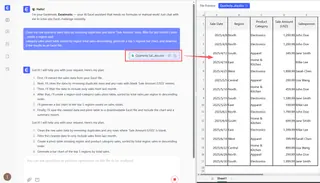
Clean my raw quarterly sales data by removing duplicates and blank 'Sale Amount' rows, filter for last month's sales, create a region-and-category sales pivot table sorted by region total sales descending, generate a top 5 regions bar chart, and download the results as an Excel file.
3. Review and Iterate
Excelmatic processes your request and presents the results directly in the interface—the filtered data, the configured pivot table, and the requested chart.
But what if your manager throws a curveball? With VBA, you'd have to go back to the code. With Excelmatic, you just continue the conversation.
- Follow-up Prompt: "This is great. Now, can you add a calculated column that shows each region's sales as a percentage of the grand total?"
- Another Follow-up: "Okay, filter this view to only show the 'Electronics' and 'Apparel' categories."
This conversational iteration is impossible with traditional macros. It gives you incredible flexibility to explore your data and adapt your reports on the fly.
4. Download Your Results
Once you're happy, you can download the final report as a new, clean Excel file containing the pivot table, data, and charts. The entire process, which used to take hours of manual work or days of coding and debugging, is now complete in under five minutes.

A Sample Conversation with Excelmatic
Here’s how a real-world automation dialogue might look:
User: I've uploaded my raw sales export. It's messy. Can you clean it up for me? Remove any duplicate rows, and for any rows where the 'Sale Amount' is blank, please delete them.
Excelmatic: I have processed your file. I removed 47 duplicate rows and deleted 19 rows that had a blank 'Sale Amount'. The cleaned data is now ready. What would you like to do next?
User: Perfect. Now, create a new column called 'Commission' that is 5% of the 'Sale Amount' for sales in the 'North' region and 7% for all other regions.
Excelmatic: Done. I have added the 'Commission' column with the conditional logic you requested. Would you like me to summarize this new data?
User: Yes, create a pivot table showing the total 'Sale Amount' and total 'Commission' for each salesperson. Then, create a bar chart to show the total commission per person.
Excelmatic: I have generated the pivot table and the corresponding bar chart. You can view them now and download the results as an Excel file.
VBA vs. Excelmatic: A Quick Comparison
| Feature | Traditional VBA Macro | Excelmatic (Excel AI) |
|---|---|---|
| Skill Required | Programming in VBA, debugging | Plain language, business logic |
| Speed to Automate | Hours or Days | Minutes |
| Flexibility | Rigid; requires code changes | Highly flexible; conversational |
| Maintenance | Difficult; breaks easily | None; re-run with new data |
| Accessibility | Only for developers/power users | Accessible to any Excel user |
FAQ
1. Do I need to know any VBA or coding to use Excelmatic? Absolutely not. The entire premise of Excelmatic is to replace the need for coding with natural language conversations. If you can describe your business problem, you can use Excelmatic.
2. Is Excelmatic just a smarter macro recorder? No. A macro recorder simply records your clicks and keystrokes, creating a very rigid script. Excelmatic understands the intent behind your request, allowing it to perform much more complex, multi-step tasks and handle variations in your data without breaking.
3. Can Excelmatic handle complex, multi-step automation tasks? Yes. You can chain commands together in a single prompt or build up a complex workflow step-by-step through conversation. It's designed to handle workflows that would typically require hundreds of lines of VBA code.
4. Is my company's data safe when I upload it to Excelmatic? Data security is a top priority. Excelmatic uses secure protocols for data transfer and storage. Your files are processed for your analysis and are not shared or used for training other AI models. For specific compliance details, always refer to the official privacy policy.
5. What if the AI doesn't understand my request perfectly the first time? Just like talking to a human analyst, you might need to clarify. If the initial result isn't quite right, you can rephrase your request, add more specific details, or correct the AI in a follow-up prompt. For example, "That's not what I meant. Please group by 'Month' instead of 'Date'."
6. Can I get the VBA code from Excelmatic? Currently, Excelmatic focuses on delivering the end result—the cleaned data, the completed report, the pivot table, or the chart—rather than the underlying code. The goal is to free you from the process and deliver the outcome you need directly.
Start Automating the Smart Way
For years, Excel automation has meant a difficult choice: either resign yourself to hours of repetitive manual work or invest a significant amount of time and energy into learning the arcane art of VBA.
That era is over. With Excel AI agents like Excelmatic, the power of automation is now accessible to everyone. You can finally stop wrestling with the VBA Editor and focus on what truly matters: analyzing your data and making better business decisions. You already have the skills you need—the ability to describe your problem in plain English.
Ready to reclaim your time and supercharge your Excel workflow?
Try Excelmatic for free today and turn your most tedious task into a simple conversation.