Key takeaways:
- Working with large Excel files often leads to losing sight of crucial headers and row identifiers, making 'Freeze Panes' a common but rigid manual fix.
- Excel AI tools like Excelmatic transform this experience by allowing you to query your data with natural language, eliminating the need for manual scrolling and view-locking.
- Instead of just freezing a view, you can use Excelmatic to instantly get specific answers, summaries, and charts, saving significant time and reducing the risk of misinterpreting data.
The Frustration of the Endless Scroll
If you work with data, you've been there. You're staring at a spreadsheet with hundreds, maybe thousands, of rows and dozens of columns. It could be a master sales report, a detailed project plan, or a comprehensive inventory list.
You scroll down to row 347 to check a specific order detail, and suddenly you can't remember: was column 'M' the shipping date or the delivery date? You scroll all the way back up to the top, check the header, and then try to find your place again. Then, you scroll to the right to see the year-end figures in column 'AZ', but now you've lost track of which product is in row 347.
This constant back-and-forth isn't just annoying; it's a significant drain on productivity and a breeding ground for errors. You spend more time navigating the sheet than analyzing the data within it.
The Traditional Fix: How 'Freeze Panes' Works (And Where It Fails)
For decades, Microsoft Excel's answer to this problem has been the Freeze Panes feature. It’s a clever tool designed to lock specific rows and columns in place so they remain visible as you scroll.
Located under the View tab, it offers three main options:
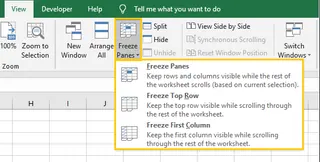
- Freeze Top Row: This locks only the very first row of your worksheet. It's a quick fix if all your headers are neatly contained in Row 1.
- Freeze First Column: Similarly, this locks the first column (Column A), which is useful if your primary identifiers (like product IDs or employee names) are listed there.
- Freeze Panes: This is the most flexible option. You select a cell, and Excel freezes all rows above it and all columns to the left of it. For example, to keep the first two rows and the first column visible, you would select cell B3 and then click
Freeze Panes.

A related feature, Split, divides your window into multiple, independently scrollable panes. This allows you to compare two distant parts of the same sheet, but it can quickly make your screen feel cluttered and confusing.
The Limitations of the Manual Approach
While Freeze Panes is a fundamental Excel skill, it's a solution from a different era. In today's data-driven world, it falls short in several key ways:
- It's Rigid: Once you freeze your panes, you're locked into that view. If you need to compare data that falls outside the frozen area, you have to unfreeze everything and start over.
- It Doesn't Aid Analysis: Freezing panes helps you see your data, but it doesn't help you understand it. You still have to manually hunt for insights, compare values, and calculate totals.
- It's Prone to Error: Setting up the freeze correctly requires selecting the right cell. Freezing the wrong section can be disorienting.
- It's a Band-Aid, Not a Cure: Freeze Panes is a workaround for a more fundamental problem: navigating massive datasets manually is inefficient. You're treating the symptom (losing headers) instead of the disease (inefficient data interaction).
The Modern Solution: Using Excel AI with Excelmatic
What if you could stop navigating altogether? What if, instead of scrolling and searching, you could simply ask your spreadsheet for the exact information you need?
This is the paradigm shift offered by Excel AI agents like Excelmatic. It reframes the problem from "How can I see my headers?" to "What answer do I need from this data?"

Excelmatic allows you to upload your Excel or CSV file and then use a simple chat interface to ask questions in plain language. The AI analyzes your data and gives you the answer directly, whether it's a number, a summary table, a PivotTable, or a chart.
Step-by-Step: From Scrolling to Asking
Let's revisit our massive sales report. Instead of freezing panes, here's how you'd solve the same problem with Excelmatic.
1. Upload Your Data File
Simply drag and drop your Excel (.xlsx) or CSV file into the Excelmatic interface. The AI will read your data, including the headers.

2. Ask Questions in Plain Language
Now, instead of scrolling, just type your question.
Instead of freezing the top row to find the header for column 'M', you can ask:
What are the values in the 'Shipping Date' column for orders in March?
Instead of freezing the first column to see the product name for row 347, you can ask:
Show me all data for 'Product ID 85721'.
To get a specific insight without any navigation, you can ask complex questions:
What is the total sales revenue for the 'North' region in Q4? Create a pivot table that shows the average sale amount per sales representative, broken down by product category. Generate a bar chart comparing the total units sold for our top 5 products last month.

3. Get Instant Answers and Insights
Excelmatic doesn't just point you to the right cell. It computes the answer and presents it in a clean, easy-to-understand format. It might generate a new table, create a formula, configure a PivotTable, or build a chart for you.

4. Iterate and Export
The best part is that it's a conversation. You can refine your request with follow-up questions.
Okay, now sort that table by the highest sales revenue. Filter this to only show results for the 'Electronics' department. Can you add a column that calculates the profit margin for each row?
Once you have the result you need, you can download it as a new Excel file, ready to be shared or integrated into your reports.
Dialogue Example: AI in Action
Here’s a typical conversation that replaces the entire process of freezing panes and manual searching:
User: I've uploaded my full-year sales report. It's huge. Can you tell me the total profit for the 'Western' region in the second half of the year?
Excelmatic: I've analyzed your data. The total profit for the 'Western' region from July 1st to December 31st is $247,580. This was generated from 1,230 individual sales.
User: Great. Who were the top 3 sales reps in that region during that period by profit?
Excelmatic: The top 3 sales representatives by profit in the Western region for H2 were:
- David Chen ($45,120)
- Maria Garcia ($41,850)
- Ben Carter ($38,900) I can create a summary table for you. Would you like that?
User: Yes, and please add their total sales amount next to their total profit.
Excelmatic: Done. I've generated a table with the top 3 reps, their total sales, and their total profit for that period. You can now download the new Excel file.
Traditional Method vs. Excelmatic
| Task | Freeze Panes Method | Excelmatic AI Method |
|---|---|---|
| Time to Complete | 1-5 minutes (depending on complexity) | 10-30 seconds |
| Process | Click View -> Freeze Panes, select cell, scroll, manually find data, potentially repeat. |
Upload file, type question in plain language, get a direct answer. |
| Flexibility | Low. View is rigid. Changing what you want to see requires unfreezing and re-freezing. | High. Ask any question, follow up, and instantly change your analysis on the fly. |
| Analytical Power | None. It's a viewing aid only. | High. Performs calculations, aggregations, sorting, and filtering automatically. |
| Risk of Error | Moderate. Easy to misread a row/column or make a mistake while manually calculating. | Low. The AI performs calculations based on your explicit instructions. |
FAQ
1. Is my data secure when I upload it to Excelmatic? Yes, data security is a top priority. Excelmatic uses secure connections and does not store your files long-term. Always refer to the official privacy policy for detailed information, but the platform is designed for professional use.
2. Do I need to clean up my data or have perfect headers to use Excelmatic? While clear headers (e.g., "Sales Rep" instead of "SR") always help the AI, it's surprisingly good at understanding context even with imperfect data. It can often infer the meaning of columns and handle minor inconsistencies.
3. Is this tool for beginners or advanced Excel users? It's for both. Beginners can get answers without needing to learn formulas or PivotTables. Advanced users can automate tedious parts of their analysis (like initial data aggregation and cleaning), freeing them up to focus on higher-level strategic insights.
4. Can Excelmatic handle very large files? Yes, Excelmatic is designed to process files that are often too large or slow to work with comfortably in the desktop version of Excel, making it ideal for big datasets.
5. Does Excelmatic change my original Excel file? No. Your original file is never modified. Excelmatic works on a copy of your data in a secure environment. Any results you generate, like new tables or charts, can be downloaded as a separate new file.
6. So, should I stop using Freeze Panes completely? Not necessarily. For a quick, simple view lock on a small sheet, Freeze Panes is still a fast, offline tool. However, the moment your task involves analyzing, comparing, or summarizing data in a large sheet, an AI approach is vastly more powerful and efficient.
Take Action: Upgrade Your Excel Workflow
Every minute you spend scrolling, searching, and re-orienting yourself in a spreadsheet is a minute you're not spending on valuable analysis. Freeze Panes was a great invention for its time, but the nature of work has changed.
By embracing an Excel AI agent like Excelmatic, you shift from being a manual data operator to a strategic data analyst. You can answer complex business questions in seconds, not minutes, and build reports with confidence and speed.
Stop wrestling with the limitations of your viewport. It's time to have a conversation with your data.
Try Excelmatic for free today and ask your first question. Upload that cumbersome spreadsheet you've been dreading and see how quickly you can get the answers you need.