Key Takeaways
- Manual month-end calculations are error-prone and time-consuming for critical business reports and billing cycles
- Excelmatic eliminates formula memorization - use simple language commands instead of complex Excel syntax
- AI automation vs manual work - Get instant, formatted results vs troubleshooting functions and cell formatting
- Perfect for business professionals - Market, sales, and ops teams can focus on analysis rather than technical Excel work
You probably don’t think about month-end dates much, at least until you need to calculate them for your financial reports, project timelines, or billing cycles. Getting these dates right is crucial, but it can be a tedious manual task or require wrestling with specific formulas.
In this guide, we’ll explore two effective ways to handle this. First, we'll dive into Excel's classic EOMONTH() function, a powerful tool for formula lovers. Then, we'll compare it with a modern AI-powered solution, Excelmatic, which gets the job done with simple language instructions.
Method 1: The Traditional Approach with the EOMONTH() Function
For those comfortable with Excel formulas, the EOMONTH() function is the go-to tool. It returns the serial number for the last day of the month that is an indicated number of months before or after a specified date. This makes it easy to automate calculations involving month-end dates.
Here is the syntax for the EOMONTH() function:
=EOMONTH(start_date, months)
start_date: The initial date from which to calculate. This can be a cell reference or a date string.months: The number of months before (negative) or after (positive) the start date. Use0for the last day of the current month.
EOMONTH() in Practice
To use the EOMONTH() function, you simply enter the formula into a cell, referencing your start date and the number of months.
For example, to find the last day of the month three months after January 15, 2024:
=EOMONTH("2024-01-15", 3)
This formula returns April 30, 2024.
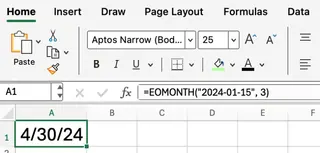
One common hiccup: Excel might show the result as a number (like 45411) instead of a date. This is the date's "serial number." You'll need to manually format the cell as a Date to see it correctly.
Common Scenarios for EOMONTH()
The EOMONTH() function is commonly used for:
- Calculating payment or subscription due dates that fall on the last day of the month.
- Defining reporting periods for financial statements.
- Scheduling recurring monthly events or deadlines.
Combining EOMONTH() with Other Functions
You can combine EOMONTH() with other functions for more advanced calculations. For example, to find the first day of the next month, you can add 1 to the result of EOMONTH():
=EOMONTH(A1, 0) + 1
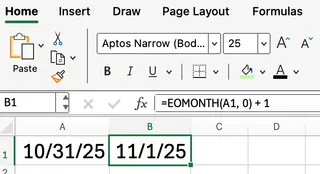
This formula first finds the last day of the current month of the date in cell A1, then adds one day to get the first day of the following month.
Method 2: The AI-Powered Approach with Excelmatic
If memorizing formulas and fixing formatting isn't for you, an AI Excel Agent like Excelmatic offers a much simpler path. Instead of writing formulas, you just describe what you want in plain language.

With Excelmatic, the process is straightforward:
- Upload your Excel file.
- State your request in the chat using natural language.
- Excelmatic handles the rest, delivering the results directly in your sheet.
Let's take the same task: finding the last day of the month three months after a list of dates in column A. Instead of a formula, you would simply ask:
For each date in column A, find the end of the month 3 months later. Put the results in column B.
Excelmatic understands the request, performs the calculation for all rows, and automatically formats the new column as dates. There's no need to remember EOMONTH, worry about syntax, or fix serial numbers.
Similarly, for the more complex task of finding the first day of the next month, you would just ask:
For the dates in column A, calculate the first day of the next month.
The AI handles the logic internally, saving you the effort of combining functions and ensuring consistent results across your entire dataset.
Head-to-Head: EOMONTH() vs. Excelmatic
| Feature | EOMONTH() Function | Excelmatic (AI Agent) |
|---|---|---|
| Ease of Use | Requires knowing the formula and its syntax. | Intuitive; uses natural language commands. |
| Learning Curve | Moderate. Need to remember function name and arguments. | Very low. If you can describe it, you can do it. |
| Formatting | Often requires manual formatting of the result cell to 'Date'. | Automatic. Results are correctly formatted. |
| Speed | Fast for single cells. Requires dragging the formula for columns. | Instant for entire datasets, no matter the size. |
| Flexibility | High, but requires nesting functions for complex logic. | Extremely high; complex requests are still simple sentences. |
| Error Handling | Manual troubleshooting required | AI automatically detects and corrects common issues |
Troubleshooting Common EOMONTH() Pitfalls
While AI tools sidestep these issues, if you're using the EOMONTH() function, you might run into these common errors:
- #VALUE! Error: This usually means your
start_dateis not a valid Excel date. - #NUM! Error: This can happen if the
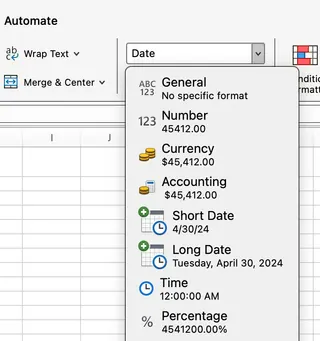
monthsargument is not a number. - Seeing a strange number: This is the most common issue. The formula is working, but the cell is not formatted as a date. To fix this:
- Select the cell(s) with the formula.
- Go to the Home tab.
- In the Number group, click the format dropdown and select Short Date or Long Date.
Conclusion: Which Method is Right for You?
The EOMONTH() function is a powerful and essential tool for any intermediate to advanced Excel user, especially those working in finance or project management. Mastering it gives you precise control over your date calculations directly within the worksheet.
However, for market analysts, sales managers, operations specialists, and other business decision-makers who need answers quickly without getting bogged down in formula syntax and formatting, Excelmatic is the clear winner. It streamlines the entire process, reduces errors, and makes complex data manipulation accessible to everyone.
Stop struggling with complex formulas and start getting instant results with Excelmatic. Whether you're preparing monthly reports, calculating payment deadlines, or planning project timelines, Excelmatic handles the technical details so you can focus on what matters - making data-driven business decisions.
Try Excelmatic today and experience the future of Excel data processing. Upload your spreadsheet and get started in seconds - no training required!