Key Takeaways:
- The Reality: Even in flexible work cultures, "Friday Afternoon Panic" remains a top stressor for data professionals.
- The Old Way: Sacrificing your Friday evening or Saturday morning to fix "dirty data," merge mismatched reports, and debug broken VLOOKUPs.
- The Shift: With Excelmatic, the "Weekend Tax" is dead. What used to take a weekend now takes a coffee break.
The Friday 4 PM Trap: Why We Still Work on Weekends
It’s a universal ritual. You’re ready to log off for the week, and then comes the "urgent" request: "Can you just consolidate these regional reports by Monday?"
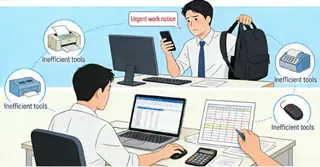
Suddenly, your plans for Friday night or a relaxing Saturday morning are under threat. You aren't doing high-level analysis; you are acting as a human data bridge — manually copying rows, splitting messy columns, and praying the formulas don't return #VALUE!.
This is the "Excel Night Shift." It’s not about corporate grind; it’s about being trapped by inefficient tools. But in 2026, this is finally becoming optional.
The Three Pillars of the "Weekend Thief" (and How AI Destroys Them)
1. The Consolidation Trap
The Pain: Merging 20 different department spreadsheets that all have different column names. The AI Fix: Excelmatic identifies columns by semantic meaning, not just exact headers. Prompt to try:
Merge these 5 regional sales files. Recognize that 'Staff', 'Employee', and 'Rep' all mean the same column. Sum the total sales per person.
2. The Cleaning Marathon
The Pain: Fixing inconsistent date formats, trailing spaces, and mixed-case text across thousands of rows. The AI Fix: AI performs complex cleaning patterns that usually require dozens of manual steps. Prompt to try:
Standardize all dates to YYYY-MM-DD, trim extra spaces from the 'Client Name' column, and capitalize the first letter of each city.
3. The Formula Debugging Rabbit Hole
The Pain: Spending hours finding the one missing comma in a nested IF or VLOOKUP.
The AI Fix: Describe your logic in plain language; let the AI handle the syntax and execution.
Prompt to try:
If the 'Performance' is over 90 and 'Late_Days' is 0, give a 10% bonus; otherwise, give 0. Calculate this for the whole table.
CASE STUDY: From a Ruined Friday to a 10‑Minute Task
Imagine Senior Analyst Sarah. Her Friday afternoon was hijacked by a last‑minute request: merge regional sales reports, convert currencies, and summarize totals.
What would that normally mean?
- Before AI: 4–6 hours of manual work—copying rows, debugging formulas, and standardizing formats—effectively canceling her Friday evening plans.
Enter Excelmatic: an AI assistant that understands what you mean, not just what you type. Instead of writing complex formulas or learning Power Query, you describe your task in plain language. Excelmatic handles the rest—cleaning, merging, calculating, and formatting—turning tedious data‑janitor work into a simple conversation.
Here’s how Sarah solved her “weekend‑killer” task in just 10 minutes with three intuitive steps:
1. Upload: Drag, Drop, and Walk Away
Sarah didn’t open each file or copy worksheets manually. She simply dragged and dropped both sales files into Excelmatic—whether they had matching columns or not. The platform ingested everything in seconds, ready for instructions.

2. Ask: Tell the AI What You Need—In Plain Language
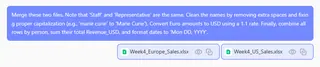
This is where the magic happens. No formulas, no macros. Sarah typed a single, clear sentence describing exactly what she wanted:
Merge these two files. Note that 'Staff' and 'Representative' are the same. Clean the names by removing extra spaces and fixing proper capitalization (e.g., 'marie curie' to 'Marie Curie'). Convert Euro amounts to USD using a 1.1 rate. Finally, combine all rows by person, sum their total Revenue_USD, and format dates to 'Mon DD, YYYY'.
Excelmatic’s AI understood the intent: match columns by meaning, clean text, convert currency, aggregate by person, and reformat dates—all from one natural‑language command.
3. Result: Review and Deliver—Not Rework
Almost instantly, Excelmatic generated a clean, consolidated table. Sarah spent just 10 minutes reviewing the output, verifying totals, and confirming everything looked right. The report was ready to share—no manual merging, no formula errors, no weekend sacrifice.
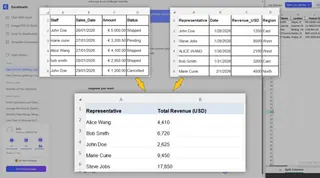
Sarah didn’t just save hours. She saved her Friday night dinner and reclaimed her entire Saturday morning. By letting AI handle the repetitive heavy lifting, she shifted from being a “data janitor” to a strategic problem‑solver—all before logging off for the weekend.
It’s Not About "Speed"—It’s About "Freedom"
When we talk about Excelmatic, we aren't just talking about a faster way to handle .xlsx files. We are talking about the end of technical drudgery.
- No more learning complex Power Query syntax to fix a simple report.
- No more staring at rows until your eyes hurt while your friends are out.
- Yes to being the person who delivers the report on Friday at 4:30 PM, perfectly cleaned and analyzed.
| Traditional Friday Panic | The AI-Powered Exit |
|---|---|
| 4 hours cleaning "dirty data" | 1 minute via natural language |
| 3 hours fixing broken formulas | Zero (AI writes the logic) |
| 3 hours manual merging | 30 seconds (Drag & drop) |
| Total: Weekend Compromised | Total: Weekend Protected |
Stop Being a Data Janitor
You were hired for your brain, not your ability to Ctrl+C and Ctrl+V. The "Excel Night Shift" was a tax we paid for imperfect tools. That tax has been abolished.
Reclaim Your Next Weekend
Don't let another Friday afternoon ruin your Saturday morning. Upload your most frustrating file to Excelmatic and see how much time you can win back today.
✨ Kill the Friday Panic