Key takeaways:
- Creating a custom sample dataset in Excel manually requires combining multiple complex functions like
SEQUENCE,RANDARRAY,INDEX, andMROUND, which is time-consuming and error-prone. - Excel AI tools like Excelmatic eliminate the need for formulas. You can generate a complete, structured dataset by simply describing your requirements in plain language.
- Using Excelmatic not only accelerates data generation from hours to minutes but also provides the flexibility to instantly modify data rules (like salary ranges or department lists) through conversational prompts.
The Problem: Why Is Creating Good Sample Data So Hard?
Whether you're an analyst testing a new dashboard, a manager training your team, or a student trying to master pivot tables, you've faced this common roadblock: you need a good dataset to work with. The internet is full of sample data, but it's rarely perfect. It might be in the wrong format, have too few columns, lack realistic relationships, or be too simple for your needs.
The logical next step is to create your own. Let's imagine you want to build a sample employee roster. You start with a list of names, but then you need to populate the rest. You'll need columns like:
- Employee ID: A unique, sequential ID with a specific format (e.g.,
EMP-2000,EMP-2001). - Department: A randomly assigned department from a predefined list (e.g., HR, Sales, Marketing).
- Job Title: A title that logically corresponds to the assigned department.
- Salary: A random salary within a specific range (e.g., $30,000 to $70,000) and rounded to the nearest thousand.
Suddenly, this "simple" task becomes a significant challenge. You're not just entering data; you're trying to simulate real-world structure and randomness. Doing this manually in Excel quickly turns into a complex, formula-driven project.
The Traditional Excel Solution: A Formula Maze
To build this dataset the traditional way, you need to be comfortable with a whole suite of modern Excel functions, many of which are part of the dynamic arrays family. It's a powerful but steep learning curve.
Here’s a breakdown of the multi-step, formula-heavy process.
Step 1: Generate Sequential Employee IDs
First, you need to count your employees and then generate sequential IDs. If your names are in A2:A11, the formula to create IDs starting from EMP-2000 would look like this:
="EMP-" & SEQUENCE(COUNTA(A2:A11), 1, 2000, 1)
This formula uses COUNTA to determine how many IDs to create and SEQUENCE to generate the numbers from 2000 onwards. You already need to know how to combine text and a dynamic array function.
Step 2: Randomly Assign Departments
Next, you need to randomly pick a department from a list like "HR", "Sales", "Marketing", and "Finance". For this, you can use INDEX combined with RANDARRAY.
=INDEX({"HR","Sales","Marketing","Finance"}, RANDARRAY(10, 1, 1, 4, TRUE))
This formula creates an array of 10 random integers between 1 and 4, and then uses those numbers as an index to pull a value from your list of departments.
Step 3: Assign Job Titles Based on Department
This is where it gets more complex. The Job Title must match the Department. You can't just generate another random list. The most common way is to use a nested IF statement or set up a separate VLOOKUP table. A nested IF formula would be:
=IF(C2="HR", "HR Admin", IF(C2="Sales", "Sales Agent", IF(C2="Marketing", "Marketing Assistant", "Accountant")))
This formula quickly becomes long, difficult to read, and a nightmare to update if you add more departments.
Step 4: Generate Randomized and Rounded Salaries
Finally, for the salary, you need to generate a random number within a range and then round it. Again, RANDARRAY is useful here, combined with MROUND to round to the nearest thousand.
=MROUND(RANDARRAY(10, 1, 30000, 70000, TRUE), 1000)
The Limitations of the Manual Method
While technically possible, this approach is far from ideal:
- High Complexity: You need to master and combine at least four different functions (
SEQUENCE,RANDARRAY,INDEX,MROUND), plus handle conditional logic withIForVLOOKUP. - Error-Prone: A single misplaced comma or parenthesis in these long formulas can break the entire dataset. Debugging is a chore.
- Inflexible: What if you want to add a "Legal" department? Or change the salary range? You have to go back and manually edit multiple formulas, increasing the risk of errors.
- Volatility: Functions like
RANDARRAYrecalculate every time the sheet changes. To "lock" your dataset, you must remember to copy and paste everything as values, an extra, often forgotten step. - High Barrier to Entry: This method is inaccessible for the vast majority of Excel users who aren't formula experts.
The Modern Solution: Generate Datasets with Excel AI (Excelmatic)
Instead of forcing you to become a formula programmer, an Excel AI Agent like Excelmatic allows you to be a "data architect." You simply describe the dataset you want, and the AI builds it for you. The same complex task becomes a simple conversation.

How It Works: From Prompt to Dataset in Minutes
The process is incredibly straightforward. You move from thinking in terms of formulas to thinking in terms of outcomes.
1. Upload Your Starting File
You can start with a blank slate or upload a simple Excel file containing your initial column of employee names. This gives the AI context to build upon.

2. Describe Your Desired Dataset in Plain Language
This is where the magic happens. Instead of writing formulas, you write a prompt that describes the final table. You can be incredibly specific about formats, rules, and relationships between columns.
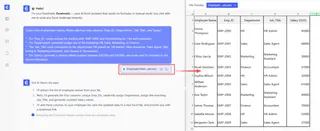
For our employee roster scenario, your prompt to Excelmatic would look like this:
I have a list of employee names. Please add four new columns: 'Emp_ID', 'Department', 'Job_Title', and 'Salary'.
For 'Emp_ID', create unique IDs starting with 'EMP-2000' and incrementing by 1 for each employee.
For 'Department', randomly assign one of the following: HR, Sales, Marketing, or Finance.
The 'Job_Title' must correspond to the department: HR should be 'HR Admin', Sales should be 'Sales Agent', Marketing is 'Marketing Assistant', and Finance is 'Accountant'.
For 'Salary', generate a random whole number between $30,000 and $70,000, and make sure it's rounded to the nearest thousand.
3. Review and Iterate on the Results
Excelmatic will process your request and generate the complete table in seconds. The key advantage is that this is a conversation. If the result isn't quite right, or if you have a new idea, you can simply ask for a change.
No more rewriting complex formulas. Just ask.
4. Download Your Finished Dataset
Once you're happy with the result, you can download the fully populated dataset as a new Excel file, ready for your analysis, dashboard, or training session.

Example Conversation with Excelmatic
Here's how that interaction might look in the Excelmatic chat interface:
User: I've uploaded a file with 10 employee names. Can you add four new columns: 'Emp_ID', 'Department', 'Job_Title', and 'Salary'?
- For 'Emp_ID', start with 'EMP-2000' and increment by 1.
- For 'Department', randomly assign one of these: HR, Sales, Marketing, or Finance.
- For 'Job_Title', it must match the department: HR gets 'HR Admin', Sales gets 'Sales Agent', Marketing gets 'Marketing Assistant', and Finance gets 'Accountant'.
- For 'Salary', generate a random number between 30000 and 70000, and round it to the nearest 1000.
Excelmatic: Done. I have generated the four columns based on your rules. The new dataset is ready for you to review. Would you like to add any other data, like a 'Hire Date' or 'Location'?
User: This is perfect. Actually, can you change the salary range to be between $45,000 and $90,000 for the Sales department only? Keep the other departments in the original range.
Excelmatic: No problem. I have updated the 'Salary' column. Salaries for the 'Sales' department are now randomly generated between $45,000 and $90,000, while all other departments remain between $30,000 and $70,000. All salaries are still rounded to the nearest thousand. You can download the updated file now.
Traditional Method vs. Excelmatic: A Quick Comparison
| Aspect | Traditional Excel Formulas | Excelmatic AI Agent |
|---|---|---|
| Time to Create | 30-60 minutes (including debugging) | 1-2 minutes |
| Required Skill | Expert-level knowledge of multiple functions | Ability to describe a business need in plain language |
| Flexibility | Low. Changes require complex formula rewrites. | High. Changes are made via simple conversational prompts. |
| Error Rate | High. Prone to syntax errors and logic flaws. | Low. AI handles the logic and syntax internally. |
| Process | Build step-by-step with formulas | Describe the end result and let AI build it |
Frequently Asked Questions (FAQ)
Q: Do I need to provide a starting file, or can Excelmatic create data from scratch? A: You can do both. While uploading a starting file (like a list of names) gives the AI context, you can also ask Excelmatic to generate a complete dataset from scratch, including the initial list of names. For example: "Create a table of 50 random employees..."
Q: Can I specify complex relationships between columns, like the Department/Job Title rule? A: Yes. This is a key strength of Excelmatic. You can define conditional logic and relationships in your prompt, just as you would explain it to a human assistant. The AI is designed to understand and implement these rules across columns.
Q: Is my data secure when I upload it to Excelmatic? A: Excelmatic is built with data security as a priority. Your files are processed securely, and the platform adheres to strict privacy policies. For specific details on enterprise-grade security and compliance, always refer to the official website.
Q: What if the AI misunderstands my request? A: The conversational interface makes it easy to correct and refine. If the first result isn't exactly what you wanted, you can simply reply with a clarifying instruction, such as "That's close, but can you make sure all employee IDs are unique?" The AI will adjust its output accordingly.
Q: Can Excelmatic generate much larger datasets, like 10,000 rows? A: Yes, Excelmatic is capable of handling large datasets, making it suitable for stress-testing applications or building robust analytical models that require a significant volume of sample data.
Stop Building, Start Describing: Create Your Next Dataset with Excelmatic
The days of wrestling with tangled formulas just to create a usable sample file are over. By shifting from a manual, formula-first approach to a descriptive, AI-first workflow, you can reclaim hours of your time and focus on what actually matters: analyzing data, building reports, and gaining insights.
Instead of being an Excel mechanic, you can become the architect of your data. Describe what you need, and let your AI agent handle the construction.
Ready to try it for yourself? Upload a file and use the prompts in this article to generate your first AI-powered dataset.
Try Excelmatic for free and create your first sample dataset in minutes.