Key takeaways:
- Creating a traditional progress bar in Excel is surprisingly complex, involving manual checkboxes, helper cells, complex formulas, and chart manipulation, making it time-consuming to build and maintain.
- Excel AI tools like Excelmatic can generate a complete progress bar and completion percentage automatically from your task list, simply by asking in plain language.
- Using Excelmatic to create progress trackers saves significant time, eliminates formula errors, and allows for instant updates and modifications without any manual rework.
Problem Background & Pain Points
Whether you're a project manager tracking milestones, a student managing assignments, or a team lead monitoring a checklist, you need a quick, visual way to see how much work is done. A progress bar is the perfect tool for this—it gives you an at-a-glance understanding of completion status.
However, anyone who has tried to create a "real" progress bar in Excel knows it's not a built-in feature. You can't just click a button and have one appear. Instead, you're forced into a multi-step, manual process that feels more like a "hack" than a solution.
Imagine you have a list of 25 project tasks. You want a single bar that fills up as you check off each completed task. This simple goal quickly becomes a major time-sink. You have to add individual checkboxes, link each one to a separate cell, write formulas to count them, and then build a custom chart that's formatted to look like a progress bar. If a new task is added, the whole setup needs to be manually updated. It's clunky, fragile, and frustrating.
The Traditional Excel Solution: Steps and Limitations
The conventional way to build a progress bar in Excel is a clever but convoluted workaround that combines form controls, formulas, and chart customization. While it works, it's far from efficient.
Here's a summary of the manual process:
Step 1: Insert and Link Checkboxes
First, you need to enable the "Developer" tab in Excel. From there, you insert a checkbox form control next to each task in your list. This is already tedious, but it gets worse: you must then manually link each checkbox to a unique cell. When a box is checked, its linked cell displays TRUE; when unchecked, it displays FALSE.
Step 2: Calculate the Completion Percentage
Next, you need a small table to perform calculations.
- Tasks Completed: You use a formula like
COUNTIF(D2:D11, TRUE)to count how many linked cells have the valueTRUE. - Total Tasks: You use
COUNTA(B2:B11)to count the total number of tasks. - Completion %: You divide the completed tasks by the total tasks to get your percentage (e.g.,
F2/F3).
Step 3: Create the "Progress Bar" Chart
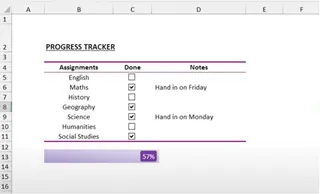
This is the trickiest part. The "progress bar" is actually a customized 100% stacked bar chart.
- Create two data points for your chart: the Completion % you just calculated, and the Remaining % (
1 - Completion %). - Insert a 100% Stacked Bar chart using these two data points.
- Format the chart extensively:
- Remove the Y-axis, X-axis, legend, and gridlines.
- Change the color of the "Remaining" portion of the bar to a light grey or "no fill."
- Change the color of the "Completed" portion to a more prominent color like green or blue.
- Add a data label to the "Completed" section and format it to show the percentage value.
- Finally, you hide the columns containing the
TRUE/FALSEvalues and the calculation table to make your sheet look clean.
Limitations of the Manual Method
While the end result looks good, this approach is riddled with problems:
- Extremely Time-Consuming: For a list of 30 tasks, you're looking at over 60 manual actions just to set up the checkboxes and their links.
- Error-Prone and Fragile: A single mistake in linking a checkbox, an incorrect formula range, or accidentally deleting a hidden helper cell can break the entire tracker.
- Poor Scalability: What happens when you need to add five more tasks to the project? You have to repeat the entire process: add new checkboxes, link them, and manually update the ranges in all your formulas.
- High Learning Curve: This method requires knowledge of the Developer tab, form controls, and non-obvious chart formatting tricks—skills that most Excel users don't possess.
The New Solution: Using an Excel AI like Excelmatic
Instead of building this complex apparatus from scratch, what if you could just ask for a progress bar? That's exactly what Excel AI agents like Excelmatic are designed for. You provide the data, describe the outcome you want in plain language, and the AI handles the formulas, charts, and formatting for you.

The Overall Idea
The workflow is radically simplified. You start with a basic task list, upload it, and have a conversation with the AI to get your progress bar. No more hidden cells, no more manual linking, and no more chart-hacking.
Step-by-Step with Excelmatic
Here’s how you'd solve the same problem in under a minute with Excelmatic.
1. Prepare and Upload Your Data
Forget checkboxes. Create a simple Excel or CSV file with two columns: Task and Status. The 'Status' column can simply contain text like "Done" or "Pending". This is much easier to manage and update than checkboxes.
| Task Description | Status |
|---|---|
| Draft Project Brief | Done |
| Finalize Budget | Done |
| Kick-off Meeting | Pending |
| Develop Wireframes | Pending |
| ... | ... |
Upload this file directly to Excelmatic.


2. Describe Your Desired Outcome in Plain Language Once your file is uploaded, you can start a conversation with the AI. Use simple prompts to tell it what you need.
Here are a few examples:
- "Calculate the percentage of tasks where the status is 'Done'."
- "Create a progress bar chart to visualize the completion percentage."
- "Show me the total number of tasks, the number of completed tasks, and a progress bar for the completion rate."

3. Review and Iterate on the Result Excelmatic will instantly analyze your data and generate the requested output—whether it's a calculation, a table, or a fully-formed chart. The best part is that you can continue the conversation to refine the result.
- "Can you change the color of the progress bar to green?"
- "Add a title to the chart: 'Project Phoenix Progress'."
- "Now, create a pie chart showing the breakdown of 'Done' vs. 'Pending' tasks."
This conversational approach allows for a level of flexibility and speed that is impossible with the manual method.
4. Export Your Results Once you're happy with the progress bar and any other analysis, you can download the results as a new, clean Excel file. The file will contain the generated charts, tables, and formulas, ready to be shared or integrated into a larger dashboard.
Example Conversation
Here’s what a typical interaction might look like:
User: I have a list of project tasks in column A and their status ('Done' or 'Pending') in column B. Can you calculate the completion percentage and create a progress bar to show it?
Excelmatic: Certainly. Based on your file, 8 out of 15 tasks are marked as 'Done', which is a 53.3% completion rate. I have generated a horizontal bar chart representing this progress. Would you like me to add the percentage label directly onto the bar?
User: Yes, please. And make the bar green and the background a light grey.
Excelmatic: Done. The progress bar is now green, set against a grey background, with '53.3%' displayed on it. You can download the updated Excel file with this chart now.
Traditional Method vs. Excelmatic: A Quick Comparison
| Aspect | Traditional Manual Method | Excelmatic AI Method |
|---|---|---|
| Time to Create | 15-30 minutes | Under 1 minute |
| Required Skills | Developer Tab, Formulas, Chart Tricks | Plain language |
| Maintenance | Difficult; requires manual updates | Effortless; re-upload and re-ask |
| Flexibility | Rigid; changes are complex | Highly flexible; iterate via chat |
| Error Rate | High; prone to human error | Low; AI handles calculations |
FAQ
Do I need to set up checkboxes before uploading my file to Excelmatic? No, and you shouldn't. A simple text column for "Status" (e.g., "Done", "Pending") is much more efficient for both you and the AI. It's easier to manage and allows the AI to perform calculations directly.
Can Excelmatic create the conditional formatting strikethrough effect on completed tasks? Excelmatic's core strength is in data analysis, formula generation, and creating charts/pivot tables. While it won't apply cell formatting directly, you can ask it: "Give me the conditional formatting formula to apply a strikethrough to any row where the status is 'Done'." You can then copy this formula into Excel's Conditional Formatting rule manager.
Is my project data secure when I upload it to Excelmatic? Yes. Excelmatic is built with data security in mind. Files are processed in a secure environment and are not shared or used for any other purpose. For specific details, always refer to the official privacy policy on the website.
What if my task list changes frequently? This is where Excelmatic shines. Since the creation process takes seconds, you can simply upload the updated list and re-run your prompt whenever you need a new progress report. There's no need to manually adjust formulas or chart ranges.
Can I use this for things other than project tasks? Absolutely! Any scenario where you're tracking progress toward a goal is a perfect fit. This includes sales quotas, budget spending, fundraising goals, course completion, or personal habit tracking.
Take Action: Upgrade Your Excel Workflow with Excelmatic
Stop wasting valuable time wrestling with clunky form controls and complicated chart settings. The manual method for creating progress bars is a relic of a pre-AI era. Every minute spent linking a checkbox or adjusting a formula range is a minute you could have spent on more strategic work.
By embracing an Excel AI agent like Excelmatic, you transform a tedious 30-minute task into a 30-second conversation. You gain speed, accuracy, and the flexibility to adapt your reports on the fly.
Ready to see for yourself? Try Excelmatic for free today. Upload your current task list or project plan and use one of the prompts from this article. It's time to let AI handle the manual work so you can focus on what matters.