Key Takeaways
- Manual data cleaning in Excel requires complex formula combinations like
CLEAN(),TRIM(), andSUBSTITUTE()that are time-consuming to learn and apply - Excelmatic provides instant data cleaning using plain language - no formula memorization or technical expertise needed
- AI-powered cleaning handles multiple issues simultaneously including hidden characters, extra spaces, and formatting problems
- Get perfectly clean data in seconds by describing what you need instead of building complex formulas
Have you ever imported data into Excel and noticed strange, hidden characters messing up your work? These are non-printable characters that cause formatting issues, break your formulas, and can even ruin calculations.
Fortunately, there are powerful ways to reclaim your data's integrity. In this guide, we'll explore two effective approaches: the traditional formula-based method using Excel's CLEAN() function and a modern, AI-powered alternative that streamlines the entire process.
Method 1: The Manual Approach with Excel's CLEAN() Function
For users comfortable with formulas, Excel provides a dedicated function to handle non-printable characters. Let’s walk through how to use it.
Quick Answer: The Excel CLEAN() Function
Here’s how to use the CLEAN() function:
- Type
=CLEAN(. - Enter either the text you want to clean or the cell reference.
- Close the function with
). - Press Enter.
The syntax is straightforward:
=CLEAN(text)
text can be any string you want to clean.
=CLEAN(A1)
A1 can be replaced with a different cell reference.
An Example of the CLEAN() Function in Action
Let’s see the CLEAN() function in more detail.
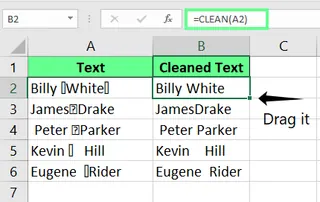
Here, I have data in cell A2 with some unwanted characters. I'll enter the following formula in cell B2 to clean up the text:
=CLEAN(A2)
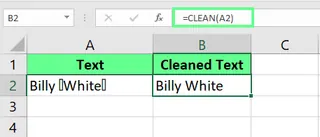
Use the CLEAN() function in a single cell. Image by Author.
Besides cleaning a single cell, you can apply the CLEAN() function to an entire column. After writing the formula in the first cell, just drag the fill handle (the small green square at the corner) down to the last row. The formula will be applied to the entire dataset, cleaning your data in seconds.
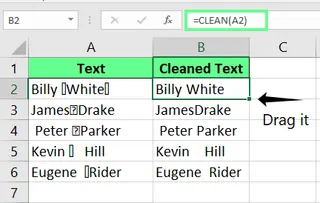
Clean multiple cells with the CLEAN() function. Image by Author.
The CLEAN() function is especially useful after importing data from external sources like databases or web pages. When you import data, non-printable characters with ASCII codes 0–31 often come along. Although you may not see them, they can disrupt calculations or create strange formatting. CLEAN() removes these specific characters.
The Challenge: When CLEAN() Isn't Enough
While CLEAN() is a great start, data cleaning is often more complex. You'll frequently encounter issues like extra spaces or other non-standard characters that CLEAN() can't handle alone. This is where the manual approach starts to get complicated.
Excel CLEAN() vs. TRIM()
The TRIM() function is another essential cleaning tool. While CLEAN() removes non-printable characters (ASCII 0-31), TRIM() removes extra space characters (ASCII 32) from the beginning, end, and middle of text (leaving only single spaces between words).
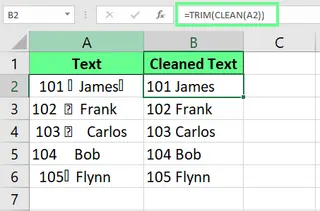
To fix both non-printable characters and spacing issues, you must nest the two functions:
=TRIM(CLEAN(A2))
Combine TRIM() and CLEAN() functions. Image by Author.
Handling Other Stubborn Characters with SUBSTITUTE()
Sometimes, you'll find characters that neither CLEAN() nor TRIM() can remove. A common example is the non-breaking space, which has a character code of 160. It looks like a space but isn't.
To remove it, you first have to diagnose the problem with the CODE() and LEFT() functions:
=CODE(LEFT(A2,1))
If this returns 160, you know you have a non-breaking space. Now, you need to build an even more complex nested formula using SUBSTITUTE():
=TRIM(SUBSTITUTE(CLEAN(A2),CHAR(160),""))
Clean cells using CLEAN() and SUBSTITUTE(). Image by Author.
As you can see, the manual method can quickly become a multi-step process of diagnosing issues and nesting multiple functions.
Method 2: The Smart Alternative with an AI Agent
What if you could skip the complex formulas and just describe what you want? That's the power of an AI-powered tool like Excelmatic.
Excelmatic is an Excel AI Agent that understands plain English instructions. Instead of remembering and combining CLEAN, TRIM, and SUBSTITUTE, you can simply tell the AI what to do.

Here’s how you would achieve the same, and even better, results with Excelmatic:
- Upload your Excel file to Excelmatic.

- Type a simple instruction, such as:
Clean the data in column A. Remove all hidden characters, line breaks, and extra spaces.
- Excelmatic handles everything. The AI automatically identifies and removes non-printable characters, extra spaces, non-breaking spaces, and other data-related junk without you needing to write a single formula.
This approach eliminates the need to diagnose the problem or figure out which combination of functions will work. You just state the desired outcome, and the AI does the work for you.
Head-to-Head: Formulas vs. AI
| Feature | Traditional CLEAN() Function |
Excelmatic (AI Agent) |
|---|---|---|
| Ease of Use | Requires learning and nesting formulas. | Simple, plain language commands. |
| Speed | Fast for simple tasks, but slow and complex for multiple issues. | Instant results for both simple and complex cleaning tasks. |
| Problem Solving | User must diagnose the issue (e.g., use CODE()). |
AI automatically identifies and fixes all issues. |
| Flexibility | Limited to its specific function; needs helper functions. | Handles a wide range of data cleaning tasks in one go. |
Best Practices for Data Cleaning
Whichever method you choose, it's wise to be careful.
- Accidental Data Loss: When using manual formulas like
SUBSTITUTE, be specific. A broad replacement could accidentally merge words or remove important characters like hyphens in phone numbers. - Test on Subsets: Before applying a formula to thousands of rows, test it on a small sample of your data first. Verify it works as expected. AI tools like Excelmatic often provide a preview of the changes, giving you a built-in safety net before you commit.
Final Thoughts
The CLEAN() function is a fundamental Excel tool that's great for removing a specific set of non-printable characters. When combined with functions like TRIM() and SUBSTITUTE(), it can solve more complex data issues, but this requires a deeper understanding of Excel formulas.
For users who need to clean data quickly and efficiently, especially when dealing with unknown or varied issues, an AI-powered solution like Excelmatic is a game-changer. It eliminates the guesswork and complexity, allowing you to get perfectly clean data with a simple instruction.
Ready to simplify your data cleaning workflow?
Try Excelmatic today and get instant, perfectly clean data using simple language commands - no formulas or technical expertise required.
FAQ
How can I check if the text is clean or contains non-printable characters?
To check for non-printable characters using a formula, use this:
=IF((LEN(C3) - LEN(CLEAN(C3))) > 0, "Non-printable characters", "Clean text")
This will tell you if a cell contains the specific non-printable characters that CLEAN() can remove.
Can I remove non-printable characters from numbers?
Yes. If a non-printable character has turned a number into text, you can clean it and convert it back to a number with the following formula. Replace C3 with your cell reference:
=VALUE(CLEAN(C3))