Key takeaways:
- Calculating complete years of service in Excel for HR tasks like pension vesting often requires using the tricky and hidden
DATEDIFfunction, a manual and error-prone process. - An Excel AI tool like Excelmatic automates this entire workflow. You can simply ask in plain language to calculate tenure, identify vested employees, and sort the data without writing a single formula.
- Using Excelmatic dramatically reduces the time spent on repetitive HR reporting, eliminates formula errors, and provides instant flexibility to answer ad-hoc questions about employee data.
The HR Challenge: Identifying Vested Employees
Imagine you're an HR manager. It's that time of year again—you need to determine which employees are eligible for a special pension benefit. The rule is simple: any employee who has completed 10 or more years of service with the company as of a specific cutoff date, say September 30th of this year, is considered "vested."
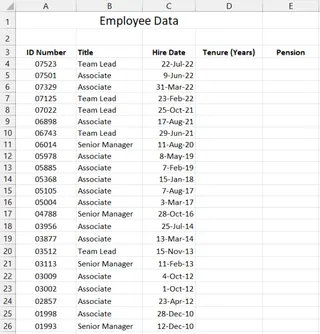
You have a standard Excel spreadsheet with a list of all employees, their job titles, and their start dates. Now the work begins. How do you accurately calculate the "number of complete years" for each person?
This isn't as simple as subtracting the start year from the current year. An employee who started on October 15, 2014, has not yet completed 10 full years by September 30, 2025. A simple year subtraction would get this wrong. You need a precise, reliable method. After calculating the tenure, you still need to flag the vested employees, sort the list for reporting, and filter out those who don't qualify. This multi-step process, while common, is a perfect example of where manual Excel work becomes tedious and prone to mistakes.
The Traditional Excel Solution: Steps and Limitations
For seasoned Excel users, this problem calls for a specific set of functions and tools. The traditional approach involves a combination of a date function, a logical function, and manual data manipulation.
The Go-To Formula: DATEDIF + IF
The most common way to solve this is by using the DATEDIF function. Interestingly, DATEDIF is a "hidden" compatibility function in Excel; it won't show up in the formula autocomplete list, so you have to know it exists.
The function's syntax is DATEDIF(start_date, end_date, unit).
start_date: The employee's start date (e.g., cellC2).end_date: The vesting cutoff date (e.g., "2024-09-30").unit: The type of interval to return."y"gives the number of complete years.
So, to calculate the years of service for an employee whose start date is in cell C2, the formula would be:
=DATEDIF(C2, "2025-09-30", "y")
But that's just the first step. To check for vesting status, you need to wrap this in an IF function:
=IF(DATEDIF(C2, "2025-09-30", "y") >= 10, "Vested", "Not Vested")
The Full Manual Workflow
Once you have the formula, the process looks like this:
- Write the Formula: Carefully type the
IF(DATEDIF(...))formula into the first cell of your "Status" column. - Drag and Fill: Double-click or drag the fill handle to apply this formula to every employee in your list.
- Sort the Data: Select your data range, go to the
Datatab, clickSort, and set up a custom sort order (e.g., by Job Title: Associates, then Team Leads, then Senior Managers). - Filter the Results: Apply a filter to the "Status" column and select only "Vested" to see the final list.
The Limitations of the Manual Method
While this process works, it's far from ideal, especially in a busy HR department.
- Complexity and Obscurity: The
DATEDIFfunction isn't intuitive for many users. If you didn't already know about it, you'd likely waste time searching for a solution. - Prone to Errors: A single typo in the formula, an incorrect cell reference when dragging, or a hardcoded date that's forgotten next year can lead to incorrect vesting decisions, which can have serious consequences.
- Rigid and Inflexible: What if your manager suddenly asks, "Great, now can you show me who will be vested by the end of the first quarter of next year?" You have to go back, edit the hardcoded date in the formula, and re-apply it to all rows. Every new question requires a manual formula change.
- Time-Consuming: While it might take only 15 minutes for a small list, this task scales poorly. For a company with thousands of employees, this process becomes a significant time sink, repeated for every similar reporting request.
The New Solution: Using an Excel AI Agent (Excelmatic)
Instead of remembering hidden functions and clicking through menus, what if you could just tell Excel what you need? That's the power of an Excel AI Agent like Excelmatic. You upload your file and use plain language to get the analysis done for you.
Let's solve the exact same vesting problem using Excelmatic.

Step 1: Upload Your Employee Data
First, navigate to Excelmatic and upload your Excel or CSV file containing the employee list. The platform will read your data and show you a preview. Ensure your columns have clear headers like "Employee Name," "Job Title," and "Start Date."

Step 2: Describe Your Goal in Plain Language
Now, instead of writing formulas, you simply chat with the AI. You can ask for the entire workflow in one go or break it down into steps.
Here are some example prompts you could use:
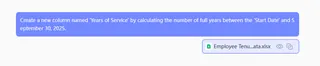
- "Create a new column named 'Years of Service' by calculating the number of full years between the 'Start Date' and September 30, 2025."
- "Add another column called 'Vesting Status'. If 'Years of Service' is 10 or more, it should say 'Vested'. Otherwise, it should say 'Not Vested'."
- "Now, sort the entire table by 'Job Title'. The order should be Associates, then Team Leads, and finally Senior Managers."
- "Filter the table to only show rows where 'Vesting Status' is 'Vested'."
Excelmatic will process each request, perform the calculation, add the columns, and manipulate the table for you, showing you the result at each step.
Step 3: Review, Iterate, and Ask Follow-Up Questions
This is where the AI approach truly shines. The results appear instantly. But what if you have a follow-up question? You can just ask.
User: I've uploaded my employee list. Can you calculate their years of service as of September 30, 2024, and tell me who is vested (10+ years)?
Excelmatic: Done. I've added a 'Years of Service' column and a 'Vesting Status' column. There are 47 employees who qualify as 'Vested'. Would you like to see the list?
User: Yes. Please show me only the vested employees, and sort them by job title.
Excelmatic: Okay, I have filtered the list to show only the 47 vested employees and sorted them by job title. You can now view the data or download the resulting file.
User: Actually, can you group these vested employees by job title and give me a count for each? And then create a bar chart to visualize it.
Excelmatic: Certainly. Here is a summary table showing the count of vested employees per job title, along with a bar chart for visualization.
This conversational "what-if" analysis is nearly impossible to do as quickly with traditional formulas. With Excelmatic, you can explore your data from any angle just by asking questions.
Step 4: Export Your Results
Once you're satisfied, you can download the final, filtered, and sorted list as a new Excel file with a single click. The data is ready for your report or presentation, all without writing a single =IF(DATEDIF(...)).
Traditional Method vs. Excelmatic: A Quick Comparison
| Aspect | Traditional Excel Method | Excelmatic (AI Agent) Method |
|---|---|---|
| Time | 15-30 minutes, depending on complexity and list size. | 1-2 minutes, regardless of list size. |
| Skills Needed | Knowledge of DATEDIF, IF, Sort & Filter tools. |
Ability to describe the business need in plain language. |
| Flexibility | Low. Changes require manual formula and filter updates. | High. Instantly answer follow-up questions via chat. |
| Error Risk | High. Typos, incorrect ranges, and logical errors are common. | Low. The AI handles the calculations and logic consistently. |
FAQ
1. Do I need to know any Excel formulas like DATEDIF to use Excelmatic? No, not at all. The entire purpose of Excelmatic is to eliminate the need for you to remember and write complex formulas. You just need to describe the outcome you want.
2. Is my sensitive employee data safe when I upload it to Excelmatic? Excelmatic is built with data security in mind. All data is encrypted in transit and at rest. For specific details on security and privacy policies, it's always best to consult the official website. Your original file is not modified.
3. What if my dates are in a weird format? Excelmatic's AI is designed to recognize and handle a wide variety of common date formats automatically, so you don't have to worry about pre-formatting your data in most cases.
4. Can I change the vesting criteria easily? Absolutely. If the tenure requirement changes to 12 years or the cutoff date moves to December 31st, you just ask a new question. For example: "Recalculate everything, but this time use 12 years as the requirement and a date of December 31, 2024." You'll get a new result in seconds.
5. Can I use the results in my own Excel workbook? Yes. You can download the fully processed data as a new Excel file or simply copy the results from the web interface and paste them into your existing workbook.
Take Action: Upgrade Your Excel Workflow Today
Every hour you spend wrestling with formulas, manually sorting data, and re-doing reports is an hour you could have spent on more strategic HR initiatives. The traditional method of calculating employee tenure is a classic example of a task that is perfectly suited for AI automation.
By embracing an Excel AI agent like Excelmatic, you're not just finding a faster way to get the answer; you're fundamentally changing your relationship with data. You become an analyst who can ask any question and get an immediate, accurate response.
Stop letting tedious tasks bog you down. Try Excelmatic today and turn your next HR reporting task from a 30-minute chore into a 30-second conversation.