Key takeaways:
- Manually creating sales reports from raw data involves tedious tasks like extracting text with the
MIDfunction and building complex summary tables withSUMIFSandCOUNTIFS. - Excel AI tools like Excelmatic replace these manual steps with natural language. You can simply describe the report you need, and the AI builds it for you.
- Using Excelmatic dramatically reduces report creation time from hours to minutes, minimizes human error, and allows for flexible, on-the-fly analysis that traditional methods can't match.
Problem Background & Pain Points
For many sales analysts, operations managers, and business owners, the weekly or monthly sales reporting cycle is a familiar grind. You receive raw data exports from your CRM or e-commerce platform, and it's your job to turn that messy spreadsheet into an insightful report for management.
Imagine you have a sales data table like this. It contains a Ref column, which is a concatenated code including product, region, and other identifiers, along with a Sales value for each transaction.
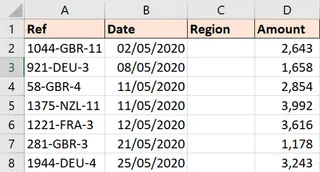
The immediate challenge is that the crucial information—the region code—is buried inside the Ref string. Before you can even begin to analyze performance, you have to extract this data. Then, management wants a summary:
- What are the total sales for each region?
- How many sales in each region met or exceeded the quarterly target of $2,500?
- Can you show this in a simple, easy-to-read chart?
This seemingly straightforward request quickly spirals into a series of manual, error-prone tasks in Excel. You find yourself building helper columns, writing complex formulas, and meticulously creating charts, all while hoping the raw data format doesn't change next month. Every new data dump means repeating the process, a time-consuming and uninspiring part of your job.
The Traditional Excel Solution: Steps & Limitations
To tackle this challenge manually in Excel, you'd typically follow a multi-step process that requires a solid understanding of several key functions and features.
Step 1: Extract the Region Code with Formulas
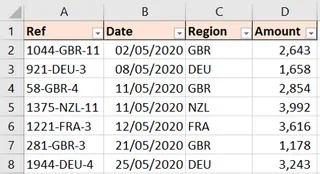
First, you need to get the region code out of the Ref column. Since the code is the three digits in the middle (e.g., "LON-101-PROD"), the MID function is the tool for the job. You'd write a formula in a new column, say column C:
=MID(A2, 5, 3)
This formula tells Excel to start at the 5th character of the text in cell A2 and extract 3 characters. You would then drag this formula down for all rows.
Step 2: Create a Summary Table with SUMIFS and COUNTIFS
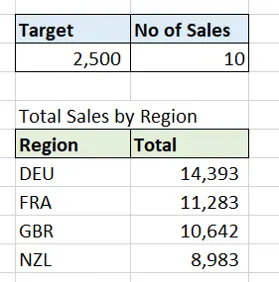
Next, you need to build a separate report to summarize the data. You'd create a unique list of region codes and then use two powerful but complex functions:
- To get total sales per region:
SUMIFS(range_to_sum, criteria_range, criteria) - To count sales over a target:
COUNTIFS(criteria_range, criteria)
Your summary table might look something like this, with each cell containing a precise formula referencing your data.
Step 3: Build a Chart
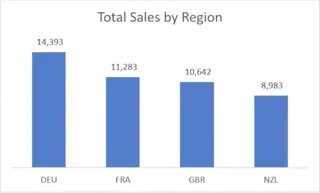
Finally, you'd select your new summary table and insert a column chart. You would then need to manually adjust the chart title, axis labels, and perhaps the colors to make it presentable for a management report.
The Limitations of the Manual Method
While this approach works, it's riddled with inefficiencies and risks:
- High Learning Curve: You need to be comfortable with text functions (
MID) and conditional aggregation functions (SUMIFS,COUNTIFS). A small mistake in a formula, like a wrong range or criteria, can lead to incorrect results that are hard to spot. - Rigid and Inflexible: Your report is built for one specific request. What if your manager asks, "Great, now can you show me the count of sales between $1,000 and $2,500?" You have to go back, write a new
COUNTIFSformula, and adjust your summary table. Quick, ad-hoc questions become mini-projects. - Maintenance Nightmare: If the format of the
Refcode ever changes (e.g., the region code becomes 4 digits or moves position), yourMIDformula breaks. You have to diagnose the issue and update it across your entire dataset. - Time-Consuming: This entire process—extracting, summarizing, charting—can take anywhere from 30 minutes to several hours, depending on the data size and complexity. It's valuable time that could be spent on actual analysis and strategy.
The New Way: Using an Excel AI Agent (Excelmatic)
Instead of being a formula-writing machine, what if you could just tell Excel what you need? That's the promise of Excel AI agents like Excelmatic. You upload your raw file and use plain language to get the analysis, reports, and charts you need in seconds.

Here's how you'd solve the exact same problem using Excelmatic.
Step 1: Upload Your Raw Data File
First, simply drag and drop your Excel or CSV file containing the raw sales data directly into the Excelmatic interface. The AI will instantly read your data and show you a preview.

Step 2: Describe What You Need in Plain Language
Now, instead of writing formulas, you just talk to the AI. You can break down the task into simple, conversational requests.
To extract the region code:
Create a new column named 'Region Code' by extracting the 3 characters that come after the first hyphen in the 'Ref' column.
To generate the summary report:
Create a summary table showing the total sales and the count of sales that are 2500 or more, grouped by the new 'Region Code' column.
To create the chart:
Based on the summary table, generate a column chart that shows the total sales for each region.

Step 3: Review, Iterate, and Ask Follow-up Questions
Excelmatic processes your request and instantly generates the result—be it a new column, a summary table, or a chart. The best part is that you can continue the conversation to refine the results or dig deeper.
This "dialogue-driven analysis" is where AI truly outshines traditional methods.
User: I've uploaded my sales data. First, create a new column called 'Region Code' by extracting the 3 digits after the first hyphen in the 'Ref' column.
Excelmatic: Done. I have added the 'Region Code' column to your data. What would you like to do next?
User: Perfect. Now create a summary report that calculates the total sales and counts how many sales were $2,500 or more for each region. Please sort the result by total sales from highest to lowest.
Excelmatic: I have generated the summary table as requested, sorted in descending order of total sales. The table includes 'Region Code', 'Total Sales', and 'Count of Sales >= 2500'.
User: Great. Now create a column chart to visualize the total sales for each region. Make the chart title "Total Sales by Region".
Excelmatic: The column chart has been created. You can view it below and download the complete analysis, including the new data, summary table, and chart, in a new Excel file.
Traditional Method vs. Excelmatic: A Quick Comparison
| Aspect | Traditional Excel | Excelmatic (Excel AI) |
|---|---|---|
| Time to Complete | 30-60 minutes | 2-5 minutes |
| Required Skills | MID, SUMIFS, COUNTIFS, Charting |
Plain English, ability to describe needs |
| Flexibility | Low. Changes require new formulas. | High. Ask follow-up questions to iterate. |
| Error Potential | High. Prone to formula and range errors. | Low. AI handles the logic and syntax. |
| Maintenance | Brittle. Breaks if source format changes. | Resilient. Re-run the same prompts on new data. |
FAQ
1. Do I need to know any Excel formulas to use Excelmatic? No, not at all. The entire purpose of Excelmatic is to translate your plain English requests into the correct data manipulations, formulas, and visualizations. You just need to know what business question you want to answer.
2. Is my data safe when I upload it to Excelmatic? Data privacy and security are top priorities. Excelmatic is designed with enterprise-grade security protocols to ensure your data is handled responsibly. For specific details, you can always refer to the official privacy policy on the website. Your original file is never modified.
3. What if my data is even messier than this example? Excelmatic's AI is trained to handle a wide variety of data cleaning and transformation tasks. You can ask it to remove duplicates, split columns, standardize formats, or fill in missing values, often with a single command.
4. Can I use the formulas or charts generated by Excelmatic in my own Excel files? Yes. You can download the complete result as a new, fully functional Excel file. The tables, charts, and even the underlying formulas (when applicable) are all there for you to use, modify, or copy into your existing workbooks.
5. How does this compare to using a PivotTable? A PivotTable is a powerful tool, but many users find it intimidating to configure. With Excelmatic, you can simply say, "Create a pivot table that shows sales by region and month," and the AI will build it for you. It's a faster way to get to the same result, with the added benefit of being able to ask for further analysis that goes beyond a single PivotTable's capabilities.
Get Started Now: Upgrade Your Excel Workflow with Excelmatic
Stop letting tedious, repetitive tasks drain your productivity. The time you spend wrestling with MID and SUMIFS is time you're not spending on high-impact strategic analysis. By embracing an Excel AI agent, you can automate the grunt work and focus on what truly matters: uncovering insights from your data.
Ready to transform your reporting process?
Try Excelmatic today and upload your first sales sheet. Use the prompts from this article as a starting point and see for yourself how quickly you can go from raw data to a finished report.