Key takeaways:
- Creating a robust employee performance review sheet in Excel traditionally requires complex, nested formulas (like
SUMPRODUCT,IF,AVERAGE) to handle weighted scores, missing data, and conditional logic, which is time-consuming and prone to errors. - Excel AI tools like Excelmatic replace this manual formula-building process with simple, conversational prompts. You can instruct the AI to "calculate the weighted score for each section, ignoring empty cells" in plain language.
- By using Excelmatic, HR managers and team leads can automate the entire workflow—from data calculation to generating dynamic radar charts—in minutes, ensuring accuracy and freeing up time to focus on the actual performance conversation.
Problem Background & Pain Points
Performance review season. For any HR professional or manager, these words can trigger a familiar sense of dread—not because of the conversations, but because of the administrative nightmare of preparing the paperwork. You have a standardized Excel template, but "standardized" rarely means simple.
Imagine you're tasked with preparing review sheets for your entire team. Your spreadsheet has two main sections: "Measurable Objectives" and "Core Competencies." Each employee has ratings from themselves, their manager, and sometimes a third assessor. The complexity quickly mounts:
- Weighted Scoring: The objectives in Section A are worth 20% each, but the competencies in Section B are worth 10% each. The final score is a weighted average of both sections (e.g., 40% for A, 60% for B).
- Missing Data: What happens when the "Other Assessor" rating is not available? Your formulas must be smart enough to ignore the blank cell and average the remaining ratings without breaking.
- Conditional Logic: There's a "Leadership" competency that only applies to employees in management roles. Your spreadsheet needs to dynamically include or exclude this metric and adjust the total score calculation accordingly.
Manually building formulas to handle all these variables is a recipe for disaster. A single misplaced parenthesis in a nested IF statement can lead to an incorrect score, potentially impacting an employee's compensation or career progression. The process is slow, stressful, and creates a rigid document that's difficult to adapt or troubleshoot.
The Traditional Excel Solution: Steps & Limitations
To tackle this in classic Excel, you'd need to become a formula wizard, combining several advanced functions to make the sheet work. The approach generally involves a mix of mathematical, logical, and lookup functions.
The Manual Formula-Driven Approach
Here’s a summary of the steps you would typically take:
Calculate Section A Score (Measurable Objectives): To handle the weighted score (20% per objective) and missing ratings, you can't just use a simple
SUM. You'd first need to calculate the average rating for each objective, ignoring blanks, perhaps with a formula likeAVERAGE(C23:E23). Then, you would useSUMPRODUCTto multiply these average ratings by their corresponding weights.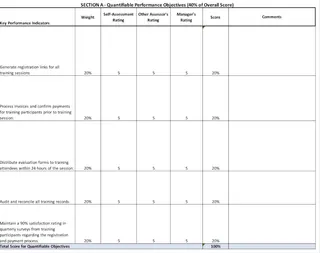
Calculate Section B Score (Core Competencies): This section is even trickier due to the conditional "Leadership" item. You'd need a complex formula in the total score cell (e.g., F43) that uses an
IFfunction to check if the employee is a leader. If they are, it calculates the score including the leadership metric. If not, it calculates the score excluding it and adjusts the total possible score to ensure the percentage is correct. This often results in a long, confusing formula.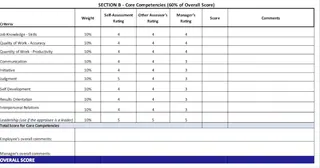
Calculate Overall Score and Display Rating: Once you have the scores for Section A and Section B, you calculate the final weighted score, for instance:
(ScoreA * 40%) + (ScoreB * 60%). To display the final rating text (e.g., "Exceeds Expectations"), you would use aVLOOKUP,XLOOKUP, or a lengthy chain of nestedIFstatements to match the score to the correct description from a lookup table.Create a Radar Chart: For visualization, you'd manually insert a Radar chart, select the data ranges for the self-assessment and manager ratings. To make the title dynamic (e.g., "Core Competencies - John Doe"), you would have to click the chart title, go to the formula bar, and link it to the employee's name cell using a concatenation formula like
="Core Competencies - " & B3.
Limitations of the Traditional Way
While this approach eventually gets the job done, it's fraught with problems:
- Extreme Complexity: The formulas are long, difficult to read, and even harder to debug. If something goes wrong, finding the error is a needle-in-a-haystack exercise.
- Fragility: The sheet is brittle. If you need t
o add a new competency or change a weight, you risk breaking the entire calculation logic.
- Poor Scalability: Deploying this template across a large team requires careful copying and pasting, where a single wrong cell reference can corrupt the results for an employee.
- Lack of Flexibility: What if a senior manager asks for an ad-hoc analysis, like "Show me a comparison of just the 'Communication' scores for everyone on the marketing team"? The rigid structure makes such requests a major, time-consuming task.
The New Solution: Using an Excel AI Agent (Excelmatic)
Instead of wrestling with formulas, what if you could just tell Excel what you want to achieve? This is exactly what Excel AI agents like Excelmatic are for. You upload your data file and use plain language to ask for the calculations, reports, and charts you need.

The Conversational AI Approach
With Excelmatic, you transform the problem from "How do I write this formula?" to "How do I describe this outcome?"
Here’s how you can build the entire performance review sheet in a fraction of the time.
Step 1: Upload Your Performance Data
First, upload your Excel or CSV file containing the performance review data to Excelmatic. This should include columns for the employee's name, their role (e.g., manager or individual contributor), and the ratings for each objective and competency.

Step 2: Describe the Calculations in Plain Language
Instead of writing formulas, you simply chat with the AI. You can break down the task into a series of simple requests.
For Section A (Measurable Objectives):
For the 'Measurable Objectives' in rows 23-27, calculate the average rating for each objective using the values in columns C, D, and E. Make sure to ignore any empty cells. Then, create a new column named 'Weighted Score' by multiplying each objective's average rating by its 20% weight. Finally, sum these weighted scores to get the total score for Section A.
For Section B (Core Competencies) with Conditional Logic:
Now, for the 'Core Competencies' section, do a similar calculation. Each competency has a 10% weight. However, the 'Leadership' competency in row 42 should only be included in the calculation if cell B6 is 'Yes'. Adjust the total score calculation accordingly based on whether this item is included. Calculate the final score for Section B.
For the Overall Score and Rating:
Calculate an 'Overall Score' where the Section A score is weighted at 40% and the Section B score is weighted at 60%. Add another column called 'Final Rating' that shows a text description based on the Overall Score, using this scale: 90-100% is 'Exceeds Expectations', 75-89% is 'Meets Expectations', and below 75% is 'Needs Improvement'.
Step 3: Generate Visualizations with a Command
Creating charts is just as easy. Forget manual data selection and formula linking.
Create a radar chart to compare the 'Self-Assessment' (Column C) and 'Manager Rating' (Column D) for the 'Core Competencies' section. The title of the chart should be 'Core Competencies - ' followed by the employee's name in cell B3.
Excelmatic will generate a chart that looks just like the one you'd spend 15 minutes creating by hand.
Step 4: Review, Iterate, and Export
Excelmatic will display the results—be it a new table, a calculated value, or a chart. The beauty is the conversational flow. If the result isn't quite right, you can refine it with follow-up commands:
- "Actually, change the weight for Section A to 50% and Section B to 50%."
- "Filter this to only show employees in the 'Sales' department."
- "Add a column showing the difference between the manager's rating and the self-assessment."
Once you're satisfied, you can download the completed Excel file with all the new data, formulas, and charts, ready to be shared.
Dialogue Example with Excelmatic
Here’s how a typical conversation might look:
User: I've uploaded my performance review file. First, calculate the score for the "Measurable Objectives" section. Each of the 5 objectives has a 20% weight. The rating for each objective should be the average of the self, manager, and other assessor ratings, but ignore any blank cells.
Excelmatic: Done. I have calculated the weighted score for the "Measurable Objectives" section, which comes out to 88%. I've placed this result in cell F28.
User: Great. Now, calculate the score for the "Core Competencies" section. Each item is worth 10%. The "Leadership" item in row 42 should only be counted if the employee is a manager (cell B6 = "Yes"). Please adjust the total calculation based on this condition.
Excelmatic: Understood. I have calculated the score for the "Core Competencies" section, conditionally including the 'Leadership' item. I have also calculated the final overall score (weighted 40/60) and added the corresponding rating text. The final report is ready. Would you like me to generate the radar chart now?
Traditional Excel vs. Excelmatic: A Quick Comparison
| Feature | Traditional Excel | Excelmatic (AI) |
|---|---|---|
| Setup Time | 1-2 hours of complex formula writing and debugging. | 5-10 minutes of typing clear instructions. |
| Required Skill | Advanced Excel (SUMPRODUCT, nested IFs, chart linking). | Basic language commands and a clear understanding of your goal. |
| Flexibility | Low. Changes require tedious manual formula edits. | High. Simply ask follow-up questions to adjust or refine. |
| Error Rate | High risk of syntax or logic errors in formulas. | Low. The AI handles the complex syntax generation. |
| Maintainability | Very difficult for colleagues to understand or update. | Easy. The conversational prompts serve as clear documentation. |
FAQ
1. Do I need to be an Excel expert to use Excelmatic? No, quite the opposite. Excelmatic is designed for users who know what they want to achieve but don't want to get bogged down in how to write the formulas. If you can describe your business logic, you can use Excelmatic.
2. Is my sensitive HR data safe when I upload it to Excelmatic? Data security is a top priority. Excelmatic is committed to protecting user data and adheres to strict privacy policies. For specific details on data handling and encryption, it's always best to consult the official privacy policy on the website.
3. Can Excelmatic handle messy or unstructured data? While Excelmatic includes data cleaning capabilities, providing it with clean and well-structured data (e.g., clear column headers) will always yield the best results. You can even ask the AI to help you clean the data, for example: "Trim all leading/trailing spaces from the 'Employee Name' column."
4. Can I use the formulas generated by Excelmatic in my own spreadsheets? Absolutely. Excelmatic can provide you with the exact formula it used. You can copy this formula and paste it directly into your own Excel files, making it a great tool for learning as well.
5. Is Excelmatic just for HR and performance reviews? Not at all. It's a general-purpose Excel AI agent that can handle a vast range of tasks, including sales reporting, financial analysis, budget tracking, project management, and much more. Any task you do in Excel can likely be automated with Excelmatic.
Get Started Now: Upgrade Your Excel Workflow with Excelmatic
Stop letting brittle formulas and manual processes dictate your performance review cycle. The time you save by automating the report creation is time you can reinvest in what truly matters: having meaningful, data-informed conversations with your team.
By embracing an Excel AI agent, you're not just building a spreadsheet faster; you're building a more agile, accurate, and stress-free process. You can finally respond to ad-hoc requests in minutes, not hours, and empower your entire team to work smarter with data.
Ready to see for yourself? Try Excelmatic today. Upload your current performance review template, use some of the prompts from this article, and watch as hours of tedious work transform into a simple, five-minute conversation.