Key takeaways:
- Traditional invoice tracking in Excel involves tedious manual steps like data transposition, writing nested
IFformulas for status, and setting up complex conditional formatting rules, which are time-consuming and error-prone. - Excel AI tools like Excelmatic streamline this entire process. You can simply upload your raw invoice data and use natural language prompts to clean, calculate, and categorize invoices automatically.
- Using Excelmatic not only saves hours of manual work but also increases accuracy and allows for dynamic analysis, such as instantly filtering for "Past Due" invoices or summarizing totals by customer without writing a single formula.
The Problem: The Monthly Headache of Invoice Tracking
If you're in finance, run a small business, or work as a freelancer, you're all too familiar with this scenario. You download an invoice report from your accounting system, open it in Excel, and are greeted by a wall of messy, unformatted data.
The headers might be in a column instead of across the top, there are random blank rows, and the dates are just numbers. Before you can even begin to figure out who owes you money, you have to spend an hour or more just cleaning and restructuring the file.

The core business need is simple: identify which invoices are paid, which are due soon, and most importantly, which are past due. But getting to this simple answer involves a frustrating series of manual tasks that are both repetitive and dangerously easy to get wrong. One slip-up in a formula, and you could miss a critical overdue payment, impacting your cash flow.
The Traditional Excel Solution: A Multi-Step Manual Process
For a seasoned Excel user, tackling this mess is a familiar, if tedious, challenge. The classic approach involves a combination of data manipulation, formulas, and conditional formatting.
Let's break down the manual workflow.
Step 1: Restructure the Data
The first hurdle is the layout. If your data is horizontal (headers in column A, values in subsequent columns), you can't sort, filter, or use Excel Tables effectively. The standard fix is:
- Select the data range.
- Copy it (Ctrl+C).
- Select a new, empty cell.
- Use the Paste Special command and check the Transpose box.
This flips your data into a standard columnar format. However, it's a static, one-time operation. If you get a new data dump next month, you have to repeat the entire process.
Step 2: Calculate 'Days Left' and 'Status' with Formulas
Once your data is in a proper table, you need to add intelligence. This typically involves two new columns:
1. Days Left: You need to calculate the difference between the Due Date and today's date.
First, you place the TODAY() function in a cell (e.g., C2) to get the current date. Then, in a new "Days Left" column, you write a formula like =[@[Due Date]]-$C$2. The dollar signs ($C$2) create an absolute reference, ensuring every row's calculation correctly points to the single cell containing today's date.
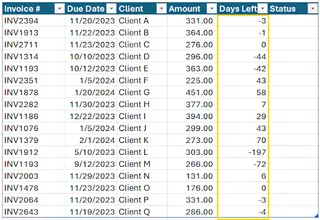
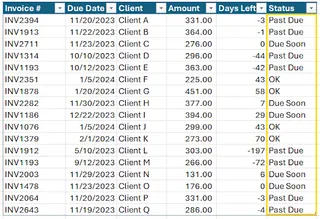
2. Status: This is where the real "fun" begins. You need to use a nested IF function to assign a status based on the "Days Left" value. The formula looks something like this:
=IF([@[Days Left]]<0, "Past Due", IF([@[Days Left]]<30, "Due Soon", "OK"))
This formula checks if the days left are negative (Past Due), then if they are less than 30 (Due Soon), and assigns "OK" to everything else.
Step 3: Apply Conditional Formatting
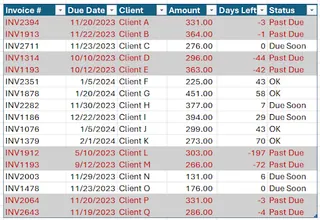
To make the "Past Due" invoices stand out, you use Conditional Formatting. This involves:
- Selecting your entire data table.
- Going to
Conditional Formatting > New Rule > Use a formula to determine which cells to format. - Entering a formula like
=$G5="Past Due", whereGis the Status column. The mixed reference ($G5) is crucial: it locks the column but allows the row number to change, so Excel checks the status for each row individually. - Choosing a format, like a red fill, to highlight the entire row.
The Limitations of the Manual Method
While this process works, it's far from ideal:
- Time-Consuming: Each step, from transposing to writing formulas and setting up rules, takes time and focus. This can easily add up to an hour or more every time you process a new report.
- Error-Prone: A typo in the
IFformula, an incorrect cell reference in the conditional formatting rule, or forgetting to refresh the data can lead to inaccurate reports. - Rigid and Hard to Maintain: What if your company decides "Due Soon" now means 45 days instead of 30? You have to find and manually edit the nested
IFformula. For a colleague to take over this task, they need to understand every formula and rule you've created. - Poor for Ad-Hoc Questions: If your manager asks, "What's the total amount owed by Customer X for past-due invoices?", you have to start a new analysis, likely by creating a PivotTable or using
SUMIFS—more manual work.
The New Approach: Using an Excel AI Agent (Excelmatic)
Instead of wrestling with these manual steps, what if you could just tell Excel what you want? That's the promise of Excel AI agents like Excelmatic. You upload your raw file and use plain language to get the final, formatted, and analyzed report.

How it Works: From Mess to Masterpiece in Minutes
Excelmatic acts as your personal data analyst. The workflow is simple and intuitive:
- Upload: Drag and drop your raw Excel or CSV file.
- Chat: Describe the cleaning, calculations, and formatting you need in plain language.
- Iterate: Review the results and ask follow-up questions to dig deeper into the data.
- Export: Download the finished Excel file, complete with clean data, formulas, and even PivotTables or charts.
Step-by-Step Guide to Building an Invoice Tracker with Excelmatic
Let's solve the exact same problem using Excelmatic.
Step 1: Upload Your Raw Invoice File Log in to Excelmatic and upload your messy invoice export. You don't need to do any pre-cleaning or transposing.

Step 2: Use Plain Language Prompts In the chat interface, simply describe what you need, one step at a time or all at once.
You could start by cleaning the data:
This data is laid out horizontally. Please transpose it so that 'Invoice #', 'Customer', and 'Due Date' are column headers. Also, remove any empty rows.
Next, ask for the calculations:
Add a new column named 'Days Left' that calculates the number of days from today until the 'Due Date'. A negative number means it's past due.
Then, create the status logic:
Now, create a 'Status' column based on 'Days Left'. If 'Days Left' is less than 0, the status is 'Past Due'. If it's between 0 and 30, it's 'Due Soon'. Otherwise, it's 'OK'.
Finally, apply the formatting:
Highlight all rows where the 'Status' is 'Past Due' in light red.
Step 3: Review, Iterate, and Analyze Excelmatic will process your requests and present a clean, formatted table. But the real power is in what you can do next. Instead of stopping there, you can continue the conversation.
- "Show me only the 'Past Due' invoices."
- "What is the total amount owed for all 'Past Due' invoices?"
- "Create a pivot table summarizing the total amount by customer for 'Past Due' and 'Due Soon' invoices."
This conversational analysis allows you to answer ad-hoc questions instantly, without building new formulas or PivotTables from scratch.
Sample Conversation with Excelmatic
Here’s how that entire process might look in a single conversation:
User: I've uploaded my messy invoice export. Can you first transpose it so the headers are in the first row? Then, calculate how many days are left until each invoice is due and put this in a 'Days Left' column. Finally, add a 'Status' column: 'Past Due' for overdue invoices, 'Due Soon' for those due in the next 30 days, and 'OK' for everything else.
Excelmatic: Done. I have transposed your data, calculated the 'Days Left' until each due date, and added the 'Status' column as you requested. I've also highlighted the 'Past Due' rows in red for better visibility. Would you like me to create a summary report or a chart?
User: This is perfect. Now, can you create a pivot table that shows the total 'Amount' owed for each status?
Excelmatic: Certainly. Here is a pivot table summarizing the total 'Amount' for 'Past Due', 'Due Soon', and 'OK' statuses. You can download the updated Excel file containing both the formatted table and this pivot table.
Traditional Method vs. Excelmatic: A Quick Comparison
| Aspect | Traditional Excel Method | Excelmatic (AI Method) |
|---|---|---|
| Time | 30-60 minutes of manual work | 2-5 minutes of chatting |
| Skills Needed | IF, TODAY(), Transpose, Conditional Formatting rules, absolute/relative references |
Ability to describe business needs in language |
| Flexibility | Rigid. Changes require manual formula edits. | Highly flexible. Analyze, filter, and summarize on the fly with new questions. |
| Accuracy | High risk of human error in formulas and references. | Consistent and repeatable AI-driven logic. |
FAQ
Do I need to know advanced Excel formulas to use Excelmatic? No, not at all. The core benefit of Excelmatic is that it translates your plain language requests into the correct data manipulations and formulas for you. You just need to know what you want to achieve.
Will Excelmatic modify my original Excel file? No. Your original file is never modified. Excelmatic works on a copy of your data within its secure environment, and you can download the results as a new file.
What if my data is even messier than this example? Excelmatic is designed to handle a wide range of common data cleaning tasks, including removing duplicates, splitting columns, standardizing formats, and filling in missing values. Just describe the problem, and the AI will propose a solution.
Is my company's financial data safe with Excelmatic? Data security and privacy are top priorities. Excelmatic uses industry-standard security protocols to protect your data. For detailed information, please refer to the official privacy and security policies on the website.
Can I use the output in my existing Excel workflow? Absolutely. You can download the fully formatted and analyzed workbook and continue working with it in desktop Excel. You can also copy AI-generated formulas to use in your other spreadsheets.
Is Excelmatic just for invoice tracking? No, this is just one example. You can use Excelmatic for any data-driven task in Excel, including sales reporting, budget analysis, project management tracking, HR data consolidation, and more.
Get Started: Upgrade Your Excel Workflow with Excelmatic
Stop wasting valuable time on the repetitive, error-prone manual tasks of invoice tracking. The hours you spend wrestling with formulas and formatting rules could be spent on what really matters: analyzing your cash flow, communicating with clients, and making strategic business decisions.
By embracing an Excel AI agent, you transform a tedious chore into a quick, insightful conversation. You can get the answers you need faster, with greater accuracy, and with the flexibility to explore your data in ways that were previously too time-consuming.
Ready to see for yourself? Try Excelmatic today. Upload that nagging invoice sheet you've been putting off and use the prompts from this article. It's time to let AI handle the grunt work.