Key takeaways:
- Repetitive tasks like formatting cells for specific criteria (e.g., highlighting VIPs in an event list) are a major time sink in Excel, often requiring tedious manual work or complex macro recording.
- Excel AI, through tools like Excelmatic, eliminates the need for recording macros and editing VBA code. You can simply describe the formatting rules you want in plain language.
- With Excelmatic, you can apply complex styling to your entire dataset in seconds, avoiding the pitfalls of macro security warnings and the manual effort of applying a macro one cell at a time.
The Problem: The Never-Ending Cycle of Repetitive Excel Formatting
Imagine you're an event coordinator, Sophia, managing a guest list for a large corporate luncheon. Your spreadsheet has 400 rows, detailing each attendee's name, role, table number, and meal choice. To give special recognition to the company's board members, you've agreed with the catering team to visually distinguish them on the spreadsheet.
The plan is simple: for every board member, you need to:
- Bold their name.
- Change their name's font color to blue.
- Highlight their entire cell in yellow.
Doing this manually is a nightmare. You have to scroll through the list, find a "Board Member," click the cell, apply three separate formatting changes, and then repeat the process for every single one. It’s not just slow; it's incredibly boring and a perfect recipe for missing someone or applying the wrong format. This kind of repetitive, rule-based task is exactly where Excel should excel, but the traditional path to automation isn't as straightforward as it seems.
The Traditional Solution: The Promise and Peril of Excel Macros
For decades, the answer to Excel automation has been macros. A macro is essentially a recorded sequence of actions that you can "play back" with a single click or a keyboard shortcut. For Sophia's task, the process would look something like this.
How to Record a Formatting Macro
First, you need to enable the "Developer" tab in Excel's ribbon, which is hidden by default. Once that's done, the steps are:
Start Recording: Go to the
Developertab and clickRecord Macro. You'll give it a name (likeFormat_Board_Member) and can assign a shortcut key.Perform the Actions: Select a single cell containing a board member's name and apply the formatting: make it bold, change the font to blue, and set the cell fill to yellow.
Stop Recording: Go back to the
Developertab and clickStop Recording.
You've now created a macro. You can select another board member's cell and run the macro to apply the same formatting. It seems like a victory, right? Not so fast.
The Limitations of the Macro Recorder
This traditional approach is fraught with hidden complexities that trip up most users.
The VBA Code Trap: The Macro Recorder often records absolute cell references. This means the code it generates might look like this:
Range("B5").Select. This code will only ever format cell B5, no matter what other cell you have selected. To fix this, you must open the intimidating Visual Basic for Applications (VBA) editor, find and delete these specific lines of code. For a non-programmer, this is a major roadblock.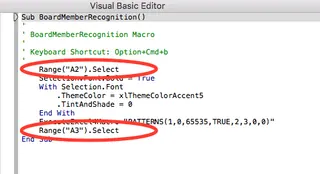
It's Still Manual: Even with a working macro, you still have to manually find every single board member in your list of 400 attendees, click their cell, and then run the macro. The macro only automates the formatting, not the finding. The most time-consuming part of the task remains untouched.
File Format and Security Issues: To save your macro, you must save your workbook as a Macro-Enabled file (
.xlsm). These files often trigger security warnings in Excel and are frequently blocked by company email systems, making it difficult to share your work.Inflexibility: What if the marketing team decides the highlight color should be green instead of yellow? You have to delete the old macro and record the entire process all over again.
Macros were a powerful tool for their time, but for tasks like this, they create as many problems as they solve.
The New Way: Automate Formatting with Excel AI (Excelmatic)
Instead of recording a series of clicks, what if you could just tell Excel what you want? That's the promise of an Excel AI Agent like Excelmatic. It replaces the rigid, step-by-step recording process with a simple, conversational interface.

Here’s how Sophia could solve her problem in under a minute using Excelmatic.
Step 1: Upload Your Data File
First, you simply upload your Excel or CSV guest list to Excelmatic. The AI instantly reads your data and shows you a preview. It works on a secure copy, so your original file remains untouched.

Step 2: Describe Your Formatting Goal in Plain Language
Now, instead of clicking buttons, you just type your request into the chatbox. You can describe the entire task in one go.
Here are a few examples of prompts Sophia could use:
For all rows where the 'Role' column is 'Board Member', highlight the entire row in yellow.Find every row that says 'Board Member' in the Role column. In those rows, make the text in the 'Name' column bold and change its color to blue.- Or, combining it all:
Highlight all rows for 'Board Member' in yellow, and also make their name bold and blue.

The AI understands the context of your data and the intent behind your request.
Step 3: Review the Instant Result
Excelmatic doesn't just format one cell. It interprets your rule and applies it to all matching rows in the entire dataset simultaneously.
You'll immediately see a preview of your table with all board members correctly and consistently formatted. There's no need to hunt for them manually or worry about missing one.
Step 4: Download Your Formatted File
Once you're happy with the result, you can download the newly formatted spreadsheet as a standard .xlsx file. No macros, no .xlsm security warnings, and no code. The file is ready to be shared with the catering team.

A Sample Conversation with Excelmatic
Imagine the workflow as a simple dialogue:
User: I have an event guest list. I need to make the 'Board Member' attendees stand out. Can you highlight their entire rows in yellow?
Excelmatic: Done. I have applied a yellow highlight to all 15 rows where the 'Role' column is 'Board Member'. Is there anything else you'd like to do with this data?
User: Yes, for those same rows, can you also make the text in the 'Name' column bold and change the font color to blue?
Excelmatic: Of course. The names of all board members are now bold and blue, and their rows remain highlighted. You can download the updated file now.
Traditional Macros vs. Excelmatic: A Quick Comparison
| Feature | Traditional Excel Macros | Excelmatic (Excel AI) |
|---|---|---|
| Method | Record a sequence of clicks and keystrokes. | Describe the desired end result in language. |
| Skills Required | Macro recording, VBA code editing, file management. | Basic conversational language skills. |
| Application | Applies to one selected cell at a time. | Applies to all matching data across the sheet instantly. |
| Time to Complete | Minutes to hours (includes manual searching). | Seconds. |
| Flexibility | Rigid. Changes require re-recording. | Highly flexible. Refine or change rules with a new message. |
| File Format | Requires macro-enabled .xlsm file. |
Standard, universally compatible .xlsx file. |
FAQ
1. Do I need to know VBA or any coding to use Excelmatic? No, absolutely not. Excelmatic is designed to replace the need for coding. You just need to be able to describe your business or data task in plain language.
2. Is my data secure when I upload it to Excelmatic? Yes. Excelmatic is built with data security as a priority. Your data is encrypted during transit and at rest, and the platform adheres to strict privacy policies. It's always best to check the official website for the latest security and privacy details.
3. Does Excelmatic change my original Excel file? No. Excelmatic works on a copy of your data in a secure cloud environment. Your original file on your computer is never modified.
4. Can I use this for other types of conditional formatting? Definitely. Any rule you can describe, you can automate. For example: "Highlight all sales figures over $10,000 in green," or "Flag any project tasks that are past their due date and not marked 'Complete'."
5. What if my data isn't perfectly clean or my column headers are messy? Excelmatic's AI is designed to understand common data structures even if they aren't perfect. However, for the best results, using clear and descriptive column headers (e.g., "Attendee Name" instead of "Col1") is recommended.
6. Can Excelmatic do more than just formatting?
Yes. Formatting is just the beginning. You can use it to generate complex formulas (like SUMIFS or VLOOKUP), create pivot tables, build charts, clean data, and generate entire analytical reports, all from natural language prompts.
Take Action: Upgrade Your Excel Workflow Today
Every minute you spend manually highlighting cells or wrestling with a broken macro is a minute you could have spent on more strategic work. The repetitive nature of these tasks isn't just a drain on your time; it's a drain on your focus and energy.
By embracing an Excel AI agent like Excelmatic, you're not just finding a faster way to click buttons. You're adopting a fundamentally smarter way to work with your data. You can finally tell your spreadsheet what to do, and it will listen.
Stop the cycle of tedious formatting. Try Excelmatic today and turn your next formatting headache into a simple conversation. Upload that very spreadsheet you've been dreading, and let AI handle the rest.