Key takeaways:
- Manually calculating employee incentives in Excel often requires complex
VLOOKUPand nestedIFformulas to merge data and apply business rules, a process that is time-consuming and prone to errors. - Excel AI tools like Excelmatic revolutionize this workflow by allowing you to merge data from multiple sheets and apply complex bonus logic using simple, conversational English prompts, completely eliminating the need for manual formula writing.
- By using Excelmatic, you can drastically reduce the time spent on incentive calculations, improve accuracy, and make the entire process easily auditable and adaptable to future changes, even without being an Excel formula expert.
Problem Background & Pain Points
Imagine you're a manager at a busy contact center. At the end of each month, it's your job to calculate the performance-based bonuses for your team of agents. The company has a clear incentive program, but the data you need is scattered across different Excel worksheets.
You have one sheet for Attendance, another for Call Quality scores from the QA team, and a third for Sales figures. To determine who gets a bonus, you need to bring all this information together for each agent and apply a multi-layered set of rules.
This is where the headache begins. For every single agent, you have to:
- Look up their days worked from the
Attendancesheet. - Find their quality score in the
Call Qualitysheet. - Pull their total sales from the
Salessheet. - Translate complex business rules into Excel formulas. For example, "Agents get 2 points for 100% call quality, but only 1 point for 90-99%."
This process is not just tedious; it's a minefield of potential errors. A single wrong cell reference or a misplaced comma in a nested IF function can lead to incorrect bonus payouts, causing frustration for you and your team. What if the bonus criteria change next quarter? You'd have to untangle and rewrite every single one of those convoluted formulas. There has to be a better way.
Traditional Excel Solution: Steps & Limitations
The classic approach to this problem involves a heavy dose of Excel's most powerful—and often most frustrating—functions: VLOOKUP and nested IF statements. While effective, this method is rigid, complex, and requires a high degree of Excel proficiency.
Here's a breakdown of the manual process:
The Manual Formula-Driven Approach
First, you would set up a main Incentive worksheet with a list of all agent IDs. Then, you'd begin the painstaking process of building your calculation engine, column by column.
Consolidate Data with
VLOOKUP: For each agent, you'd write separateVLOOKUPformulas to pull in their 'Days Worked', 'Quality Score', and 'Total Sales' from the other three worksheets. This means three different formulas right from the start, each one looking something like this:=VLOOKUP(A2, Attendance!$A$2:$B$50, 2, FALSE)Calculate Attendance Points: You'd write a formula to calculate the attendance percentage and use an
IFstatement to assign points. Assuming 22 business days in the month:=IF((B2/22)>=0.95, 1, 0)Calculate Quality Points: This requires a nested
IFstatement to handle the multiple tiers of the quality score rule.=IF(C2=1, 2, IF(C2>=0.9, 1, 0))Calculate Sales Points: This is the most complex formula, as it depends on two different data points ('Total Sales' and 'Days Worked') to first calculate the daily average. The formula becomes a monster:
=IF((D2/B2)>=2, 2, IF((D2/B2)>=1, 1, 0))Sum Total Points & Calculate Bonus: Finally, you'd sum the points from the three new columns and use another nested
IFto determine the final bonus amount.=IF(F2=5, 100, IF(F2=4, 50, 0))
The Limitations of the Manual Method
While this method works, it's far from ideal. The key limitations are:
- Extreme Complexity: The formulas, especially the nested ones, are long, difficult to read, and even harder to debug. A single typo can break the entire calculation for an agent.
- High Maintenance: What happens when the bonus rules change? If management decides to award points for 85% quality, you have to go back and manually edit your cryptic
IFformulas, hoping you don't break something else. - Error-Prone: With so many manual lookups and complex conditions, the risk of human error is incredibly high. A
VLOOKUPpointing to the wrong column or a>instead of a>=can lead to incorrect payouts and employee dissatisfaction. - Lack of Flexibility: If your boss suddenly asks, "Who were our top performers in sales but had low attendance?", answering that question requires building a whole new set of filters or pivot tables. The current setup is too rigid for ad-hoc analysis.
Using Excel AI (Excelmatic) for a Smarter Solution
Instead of wrestling with formulas, what if you could just describe the bonus rules in plain language and have an AI assistant do the heavy lifting? That's exactly what you can do with an Excel AI Agent like Excelmatic.

The process is transformed from a formula-building marathon into a simple conversation.
Step 1: Upload Your Data
First, simply upload your Excel file containing the Attendance, Call Quality, and Sales worksheets directly to Excelmatic. The AI will instantly read and understand the structure of your data across all sheets.

Step 2: Merge Data with a Simple Prompt
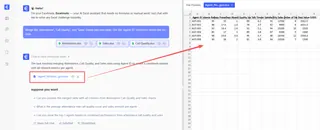
Your first goal is to consolidate all the data into a single, unified table. Instead of writing multiple VLOOKUP formulas, you just ask:
Merge the 'Attendance', 'Call Quality', and 'Sales' sheets into one table. Use the 'Agent ID' column to match the records.
Excelmatic will instantly generate a new table with all the relevant data for each agent neatly organized in one place.
Step 3: Apply Business Rules Using Natural Language
Now, you can apply the incentive logic, one rule at a time, just by describing it.
For Attendance Points:
Create a new column named 'Attendance Points'. If 'Days Worked' divided by 22 is 0.95 or more, the value should be 1. Otherwise, it should be 0.
For Call Quality Points:
Now, add a 'Quality Points' column. If 'Quality Score' is 100%, give 2 points. If it's between 90% and 99%, give 1 point. For anything else, give 0 points.
For Sales Points:
Next, create a 'Sales Points' column. First, calculate the average daily sales by dividing 'Total Sales' by 'Days Worked'. If this average is 2 or more, assign 2 points. If it's at least 1 but less than 2, assign 1 point. Otherwise, assign 0.
Step 4: Finalize Calculations and Export
With all the point categories calculated, you can finish up with two final prompts:
To Sum the Points:
Create a 'Total Points' column that is the sum of 'Attendance Points', 'Quality Points', and 'Sales Points'.
To Calculate the Bonus:
Finally, create a 'Bonus Amount' column. If 'Total Points' is 5, the value is 100. If 'Total Points' is 4, the value is 50. For all other scores, the value is 0.
Within seconds, Excelmatic presents you with a complete, final table containing all the calculations. You can then download this as a brand-new, clean Excel file.
Dialogue Example with Excelmatic
Here's how that entire workflow might look as a conversation:
User: I've uploaded my agent performance data with three tabs: Attendance, Quality, and Sales. First, combine them into a single table using the Agent ID.
Excelmatic: Done. I've created a new table with all data merged for each agent. What's the first performance rule you'd like to apply?
User: Calculate attendance points. They get 1 point for 95% attendance or more, out of 22 working days. Otherwise 0.
Excelmatic: Okay, I've added an 'Attendance Points' column with the calculated values. Now, how should we calculate the quality points?
User: 2 points for 100% quality, 1 point for 90-99%, and 0 for less than 90%. After that, calculate the final bonus: $100 for 5 total points and $50 for 4 total points.
Excelmatic: All calculations are complete. I have generated a final table with columns for each point category, the total points, and the final bonus amount for each agent. You can download this as a new Excel file now.
Traditional vs. Excelmatic: A Quick Comparison
| Feature | Traditional Excel | Excelmatic (AI) |
|---|---|---|
| Time to Implement | 1-2 hours of careful work | 5-10 minutes of conversation |
| Required Skills | VLOOKUP, Nested IFs, Formula Debugging |
Plain language, Understanding of business logic |
| Flexibility | Low (changing rules is a major task) | High (just type a new instruction to adjust) |
| Error Risk | High (typos, wrong ranges, logic errors) | Low (AI handles formula syntax and logic) |
| Readability | Poor (long, cryptic formulas) | Excellent (prompts are self-documenting) |
FAQ
Q: Do I need to know VLOOKUP or IF functions to use Excelmatic?
A: Absolutely not. You only need to describe the outcome you want in plain English. Excelmatic handles the complex formula generation behind the scenes.
Q: Is my company's performance data safe when I upload it to Excelmatic?
A: Yes. Excelmatic is built with data security as a top priority, employing industry-standard encryption and privacy protocols. Your data is not used for training models, and you retain full ownership of your files.
Q: What if my data isn't perfectly clean? For example, some agent IDs have typos.
A: Excelmatic can help with that too. Before merging, you can ask it to perform data cleaning tasks, such as "Find any agent IDs that don't match the main list" or "Trim extra spaces from all cells."
Q: Can I see the formulas Excelmatic generates?
A: Yes. Excelmatic can show you the exact formulas it used to generate the results. You can copy these formulas and paste them into your own spreadsheets if you wish, making it a great tool for learning as well.
Q: What happens if the AI misunderstands my request?
A: Just like talking to a human assistant, you can clarify or rephrase your request. The conversational interface makes it easy to iterate and refine your analysis until the result is exactly what you need.
Take Action: Upgrade Your Excel Workflow Today
Stop letting complex formulas slow you down and introduce risk into critical calculations like payroll and bonuses. The hours spent building, debugging, and maintaining VLOOKUP and nested IF chains are hours you could be spending on more strategic analysis.
By switching to an Excel AI agent, you can transform this tedious monthly task into a quick, simple, and accurate process. You'll not only save time but also gain confidence in your results and the flexibility to adapt to changing business needs on the fly.
Ready to see it for yourself? Try Excelmatic for free today. Upload your own performance spreadsheet and use the prompts from this article as a starting point. Experience how quickly you can get from scattered data to a finalized bonus report.