Key takeaways:
- Handling business rules in Excel, like determining student application status, traditionally requires complex and error-prone nested
IF,AND, andORformulas. - Excel AI tools like Excelmatic let you describe these multi-condition rules in plain language, and the AI automatically generates the results or the corresponding formula.
- Switching to an Excel AI agent dramatically reduces the time spent on formula creation, minimizes errors, and makes the logic easy for anyone on your team to understand and update, no formula expertise required.
Problem Background & Pain Points
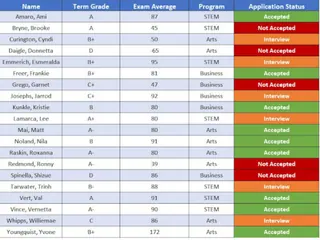
Imagine you're an admissions officer at a university, and it's peak application season. You have a spreadsheet with thousands of applicants, each with their desired program, their performance in the last term, and their final exam average. Your task is to assign an "Application Status"—either "Accept" or "Reject"—to every single student.
It sounds straightforward, but there's a catch. The acceptance criteria aren't uniform. They change based on the program each student applied for:
- Arts: Requires "Good" performance AND an exam average of 70 or higher.
- Business: Requires "Good" performance OR an exam average of 80 or higher.
- STEM: Requires "Good" performance AND an exam average of 90 or higher.
Manually reviewing each row is out of the question; it would take weeks and be riddled with human error. The only viable path in traditional Excel is to build a formula. This is where the headache begins. You need to combine different logical tests (AND vs. OR) for different categories, all within a single, overarching formula.
This leads to a "monster formula"—a long, convoluted string of nested functions that is incredibly difficult to write, even harder to debug, and nearly impossible for a colleague to understand or modify later. What happens if the Business school changes its criteria next semester? You'll have to dive back into that complex formula and pray you don't break something.
The Traditional Excel Solution: Steps & Limitations
For experienced Excel users, the go-to solution for this kind of problem is a combination of the IFS, AND, and OR functions. The IFS function checks conditions one by one and returns a value for the first true condition it finds.
Here's a breakdown of how you would build the formula to solve the applicant status problem.
Step-by-Step Formula Construction
Assuming your data is set up with "Program" in column B, "Last Term Performance" in column C, and "Exam Average" in column D, the formula in your "Application Status" column would look something like this:
Structure with
IFS: TheIFSfunction allows you to list pairs of conditions and results. The basic syntax isIFS(condition1, result1, condition2, result2, ...).Create the "Arts" Condition: The rule is
Program="Arts" AND Performance="Good" AND Average>=70. In Excel, this translates to:AND(B2="Arts", C2="Good", D2>=70)Create the "Business" Condition: The rule is
Program="Business" AND (Performance="Good" OR Average>=80). Note the nestedOR. This becomes:AND(B2="Business", OR(C2="Good", D2>=80))Create the "STEM" Condition: Similar to Arts, the rule is
Program="STEM" AND Performance="Good" AND Average>=90. This is:AND(B2="STEM", C2="Good", D2>=90)Combine into a Single Formula: Now, you assemble these pieces into one
IFSformula. You also need a final "catch-all" condition to label everyone else as "Reject".=IFS( AND(B2="Arts", C2="Good", D2>=70), "Accept", AND(B2="Business", OR(C2="Good", D2>=80)), "Accept", AND(B2="STEM", C2="Good", D2>=90), "Accept", TRUE, "Reject" )The
TRUE, "Reject"part at the end acts as an "else" case, applying to any rows that didn't meet the "Accept" criteria.
Limitations of the Traditional Method
While this formula works, it highlights several major drawbacks of relying on manual formula creation for complex logic:
- Extreme Complexity: The formula is long, nested, and difficult to read. A single misplaced comma or parenthesis will result in a
#VALUE!or#N/Aerror, sending you on a frustrating debugging journey. - High Risk of Error: It's very easy to make a logical mistake. Did you use
>=when you meant>? Did you mix up anANDwith anOR? These small errors can lead to incorrect decisions for hundreds of applicants. - Poor Scalability: What if the university adds a "Humanities" program with its own unique rules? You would have to carefully edit the monster formula, inserting a new clause in the right place without breaking the existing logic. This is not a scalable process.
- Lack of Transparency: If you hand this spreadsheet to a new team member, they would have no easy way of understanding the business rules just by looking at the formula. It's not self-documenting, creating a knowledge silo and a dependency on the original author.
The Excel AI Solution: Using Excelmatic

Instead of wrestling with formulas, what if you could just describe the rules to Excel and have it do the work for you? That's exactly what an Excel AI Agent like Excelmatic is designed for. It replaces complex formula syntax with simple, conversational language.
The New Workflow with Excelmatic
Here’s how you would solve the exact same problem in a fraction of the time.
1. Upload Your Data File
First, you upload your Excel or CSV file containing the applicant data directly to the Excelmatic web app. The AI will instantly read your data and display a preview, understanding the headers like "Program," "Last Term Performance," and "Exam Average."
2. Describe Your Desired Outcome in Plain Language
Next, you simply type your instructions into the chatbox. You don't need to know any functions. You just state the business logic as if you were explaining it to a colleague.
You could use a prompt like this:
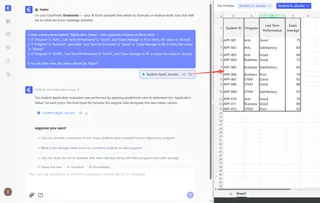
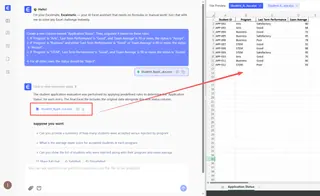
Create a new column named "Application Status". Then, populate it based on these rules:
- If 'Program' is "Arts", 'Last Term Performance' is "Good", and 'Exam Average' is 70 or more, the status is "Accept".
- If 'Program' is "Business" and either 'Last Term Performance' is "Good" or 'Exam Average' is 80 or more, the status is "Accept".
- If 'Program' is "STEM", 'Last Term Performance' is "Good", and 'Exam Average' is 90 or more, the status is "Accept".
- For all other rows, the status should be "Reject".
3. Review and Iterate on the Results
Excelmatic will process your request and instantly generate the new "Application Status" column with the correct values.
But the real power lies in the conversational interface. You can continue the analysis with follow-up questions:
- "Show me a count of accepted students for each program."
- "Filter the table to show only the rejected STEM applicants."
- "What is the average exam score for the accepted Business students?"
This iterative, conversational approach to data analysis is impossible with static formulas.
4. Export Your Results
Once you're satisfied, you can download a new Excel file containing the results. Alternatively, you can ask Excelmatic to provide the IFS formula it used, which you can then copy and paste into your original worksheet. This is great for learning or for situations where you need to integrate the logic back into an existing workbook.
Dialogue Example with Excelmatic
Here's how a typical conversation might look:
User: I have a list of student applications. I need to add a new column 'Application Status' based on several rules. Can you help?
Excelmatic: Of course. I've analyzed your file. Please provide the rules for the 'Application Status' column.
User: Okay. If the program is 'Arts' and their performance was 'Good' and exam average is at least 70, they are 'Accepted'. If the program is 'Business' and their performance was 'Good' OR their exam average is at least 80, they are 'Accepted'. For 'STEM', they need 'Good' performance AND an exam average of at least 90 to be 'Accepted'. Everyone else is 'Rejected'.
Excelmatic: Understood. I have added the 'Application Status' column and populated it based on your rules. I see that 152 applicants have been accepted and 348 have been rejected. Would you like a summary chart of acceptances by program?
User: Yes, create a bar chart showing that.
Excelmatic: Here is the bar chart showing the number of accepted applicants for the Arts, Business, and STEM programs. You can download the chart or the updated data file below.
Traditional vs. Excelmatic: A Quick Comparison
| Aspect | Traditional IFS Formula |
Excelmatic AI Agent |
|---|---|---|
| Time to Implement | 30-60 minutes (including debugging) | 2-3 minutes |
| Required Skill | Advanced Excel formula knowledge | Ability to describe business rules in language |
| Error Rate | High (syntax, logic, cell references) | Very low (AI interprets rules consistently) |
| Flexibility | Rigid; difficult to modify or add rules | Highly flexible; just state the new rule |
| Transparency | Poor; logic is hidden in complex code | Excellent; logic is stated in plain language |
FAQ
1. Do I need to know any Excel formulas to use Excelmatic?
No. The core benefit of Excelmatic is that you can achieve complex outcomes by describing what you want in natural language. You don't need to write any IF, VLOOKUP, or AND/OR formulas yourself.
2. Is my company's data safe when I upload it to Excelmatic? Data security is a top priority. Excelmatic uses encryption for data in transit and at rest. Your data is not used for training AI models. For detailed information, always refer to the official privacy policy on the website.
3. Can Excelmatic handle even more complex, multi-step logic? Absolutely. You can chain commands together. For example, after determining the application status, you could ask the AI to calculate the acceptance rate per program, identify the top 10 rejected candidates who were closest to the threshold, and generate a summary report.
4. Will Excelmatic modify my original Excel file? No. Excelmatic works on a copy of your data within its secure environment. Your original file remains untouched on your computer. You can download the processed results as a new file.
5. What if my column headers are messy or unclear? For best results, clear and descriptive headers (e.g., "Exam Average" instead of "exam_avg_s1") are recommended. However, the AI is often smart enough to infer the meaning from the data itself. You can also rename columns directly within the chat interface by saying, "Rename column 'Col3' to 'Exam Average'."
6. Can I get the actual Excel formula from Excelmatic? Yes. After the AI generates the result, you can ask, "What Excel formula would accomplish this?" Excelmatic will provide the exact formula, which you can then use in your own spreadsheets.
Take Action: Upgrade Your Excel Workflow with Excelmatic
Stop spending valuable time building and debugging brittle, complex formulas. The manual approach to handling business logic in Excel is not only slow but also a constant source of potential errors that can have real-world consequences.
By embracing an Excel AI agent, you can transform your workflow. Instead of focusing on how to write a formula, you can focus on what business question you want to answer. You'll get results faster, with greater accuracy, and create processes that anyone on your team can understand and maintain.
Ready to see it for yourself? Try Excelmatic today. Upload the spreadsheet you're currently working on and ask it the question you've been struggling to turn into a formula.