
Blog List Page 28
Guides, templates, and Excel AI workflows to get work done faster.
 Excel Tips
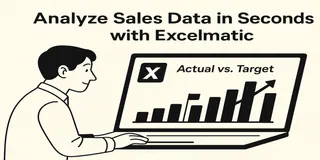
How to Analyze Daily Sales Data and Track Targets Using Excel
Use Excel to track daily sales, visualize performance vs target, and identify underperforming days. No formulas required.
Sally •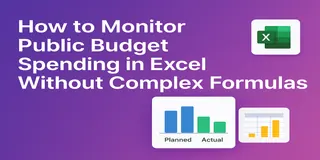 Excel Tips
How to Monitor Public Budget Spending in Excel AI Without Complex Formulas
Monitor public budget spending using Excel—visualize variance, track utilization, and report by quarter, all without complex formulas or pivot tables.
Sally •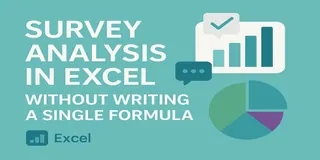 Excel Tips
How to Analyze Survey Data in Excel Without Writing a Single Formula
Turn raw survey feedback into visual dashboards and key insights without a single formula. Here's how to analyze survey results in Excel the smart way.
Sally •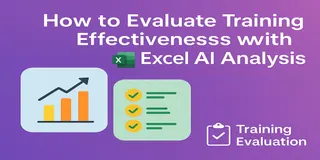 Excel Tips
How to Evaluate Training Effectiveness with Excel AI Analysis in Minutes
Evaluate training effectiveness in minutes using Excelmatic. From average feedback to quiz failures and comment insights, get real answers fast—no formulas needed.
Sally •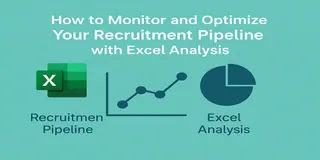 Excel Tips
How to Monitor and Optimize Your Recruitment Pipeline with Excel Analysis
Visualize and optimize your recruitment funnel in Excel—track hiring stages, interview durations, and recruiter workloads with 3 simple prompts using Excelmatic.
Sally • Excel Tips
Fix Messy HR Employee Data in Seconds with Excel AI Excel Analysis
Fix messy HR spreadsheets in seconds. Format dates, count employees by department, and prefix employee IDs using Excelmatic’s Excel analysis—no formulas needed.
Sally • Excel Tips
How to Track and Understand Employee Attrition with Excel Analysis
Easily analyze employee attrition using Excelmatic—track turnover rate, departure reasons, and department exits with zero formulas or pivot tables.
Sally •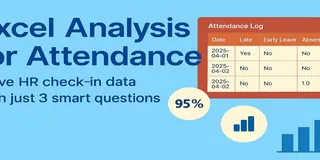 Excel Tips
Excel Analysis for Attendance: Solve HR Check-in Data with Just 3 Smart Questions
Struggling with Excel-based attendance tracking? Learn how Excelmatic helps HR professionals get instant insights into attendance rate, late arrivals, and department summaries—without writing a single formula.
Sally •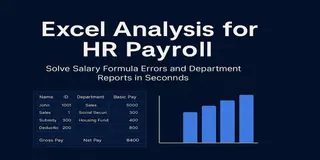 Excel Tips
Excel Analysis for HR Payroll – Solve Salary Formula Errors and Department Reports in Seconds
Struggling with complex salary formulas or department payroll summaries? Excelmatic’s Excel analysis tools help HR teams automate salary calculations and generate insightful payroll reports instantly.
Sally • AI for Excel
How to Predict Sales Trends and Costs with Excel AI — No Formulas Needed
Stop struggling with complex Excel formulas for trend prediction. Discover how I use Excelmatic to predict sales and simulate scenarios — all with a simple prompt.
Sally •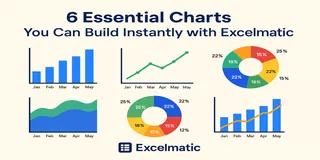 Excel Tips
6 Essential Charts You Can Build Instantly with Excelmatic
Learn how I use Excelmatic to instantly create 6 powerful chart types from Excel tables — no formatting, no formulas, no stress.
Sally • AI for Excel
How I Reconcile Financial Records Faster with Excel AI — No More Manual Matching
Still reconciling finance data by hand? Discover how Excelmatic helps me find mismatches and errors in minutes — no VLOOKUP, no stress.
Sally • AI for Excel
How I Compare Budget vs Actual Spending with Excel AI — No Manual Calculations
Stop wasting hours on budget analysis. Learn how Excelmatic helps me calculate variances, detect overspending, and visualize results instantly.
Sally • AI for Excel
How I Build Finance Reports in Minutes with Excel AI
Still building finance reports manually? Discover how Excelmatic helps me merge, summarize, and visualize department budgets — in under 2 minutes.
Sally •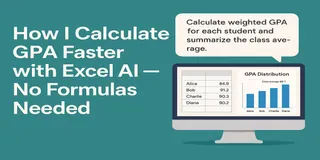 AI for Excel
How I Calculate GPA Faster with Excel AI — No Formulas Needed
Still calculating GPA manually in Excel? See how AI can clean your data, compute GPA, and create grade charts instantly — no formulas, no stress.
Sally •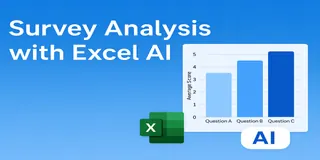 AI for Excel
How I Analyze Survey Data Faster with Excel AI — No Formulas Needed
Stop wasting hours on survey analysis. See how Excelmatic helps you clean, calculate, and chart survey data instantly — with just one question.
Sally •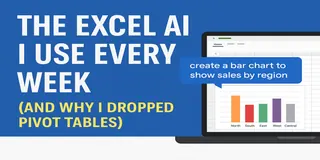 Excel Tips
The Excel AI I Use Every Week (and Why I Dropped Pivot Tables)
Every week, I used to fight with pivot tables. Now I just upload my data to Excelmatic and type a question. Here's how it works.
Sally •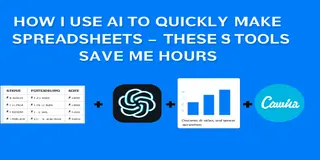 Excel Tips
How I Use AI to Quickly Make Spreadsheets — These 3 Tools Save Me Hours
You don’t need formulas to make a report. Here’s how I use 3 AI tools to go from messy data to polished charts.
Sally • Excel Tips
8 Free AI Tools That Make Excel, Charts, and Reporting Easier
These 8 AI tools are free and practical — from cleaning messy spreadsheets to building beautiful charts and summaries.
Sally •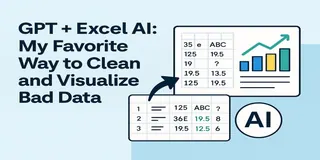 Excel Tips
GPT + Excel AI: My Favorite Way to Clean and Visualize Bad Data
This is my go-to workflow when I get a messy dataset: ChatGPT to clean it, Excelmatic to visualize it. Here's how it works — with real data.
Sally • Excel Tips
5 AI Tools That Actually Make Excel and Data Work Easier
Sick of writing formulas, formatting charts, or designing slides? These 5 AI tools will change how you work with Excel, data, and presentations.
Sally •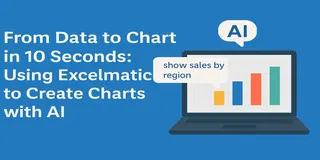 Excel Tips
From Data to Chart in 10 Seconds: Using Excelmatic to Create Charts with AI
Manually creating charts in Excel is overrated. See how Excelmatic turns your spreadsheet into polished charts in just one prompt.
Sally • Excel Tips
No Copilot? Try These Free Excel AI Tools Instead
Can’t access Copilot? Try these 4 free Excel AI tools that simplify your data tasks and help you work smarter.
Sally • Excel Tips
Tired of Googling Excel Formulas? Here’s a Smarter Way
From calculating sales growth to segmenting customers — stop Googling Excel formulas. Here's how AI can handle your data analysis tasks in seconds.
Sally • Excel Tips
Lazy No More: Let AI Instantly Analyze Your Excel Data for You
Can you analyze Excel data without using formulas or charts? With Excelmatic, yes — just upload your sheet and ask. AI handles the rest.
Sally • Excel Tips
How to Use AI to Instantly Analyze Excel Data (No Coding Needed!)
Want to analyze Excel data with AI but hate formulas? Learn how Excelmatic turns your spreadsheets into insights with just a question.
Sally • Excel Tips
Let AI Handle Your Excel Charts: A Smarter Copilot Alternative?
Is Excelmatic the smarter Copilot alternative for Excel charts? Learn how this AI-powered chart editor saves you time and delivers better-looking visuals, faster.
Sally • Excel Tips
ChatGPT + Excel AI = A Productivity Powerhouse? Here’s What You Need to Know
Structure data with ChatGPT, visualize it instantly with Excelmatic. This AI combo can seriously boost your Excel productivity.
Sally • Excel Tips
The Easiest Way to Make Excel Charts with AI (Free Download Inside)
Say goodbye to complex Excel chart templates. With Excelmatic’s AI, create professional bar, line, and pie charts in seconds using simple prompts—no coding or design experience required.
Sally • Excel Tips
Monthly Order Analysis Made Easy: Excelmatic AI Report Generator
Automate your monthly Excel order analysis with AI. Excelmatic lets you generate clean reports, visual charts, and summaries using just one sentence—no Excel skills required.
Sally • Excel Tips
Ditch Your Excel Templates: Automate Data Analysis with AI (ChatGPT + Excelmatic in Action)
Break free from Excel template limitations with ChatGPT and Excelmatic. Learn AI-powered data analysis workflow for dynamic business insights without complex formulas.
Sally • Excel Tips
Save Hours with These 4 ChatGPT + Excel Tips (and How Excelmatic Does It in One Sentence)
Discover how to use ChatGPT to write Excel formulas—and how Excelmatic takes it further by automating the entire process with natural language. Say goodbye to templates and hello to smart spreadsheets.
Sally •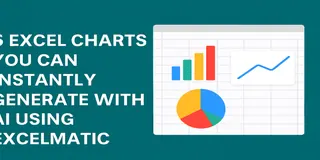 Excel Tips
5 Excel Charts You Can Instantly Generate with AI Using Excelmatic
Learn how to turn your Excel data into charts in seconds using AI. This blog shows 5 real-life examples of pie, bar, and line charts built with Excelmatic — and the insights it can generate automatically.
Sally • Excel Tips
Master Data Analysis with Excelmatic: No Formulas, No Coding, Just Actionable Insights
Transform your Excel spreadsheets into powerful insights with Excelmatic’s AI. No formulas, no coding—just natural language questions and instant results.
Sally • Excel Tips
Excelmatic vs ChatGPT: Which AI Assistant Works Better for Excel Analysis?
Inject super efficiency into Excel with AI: automate repetitive tasks, perform advanced analysis, and easily gain insights through natural language.
Sally •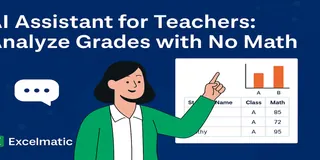 Excel Tips
Excelmatic: The Best AI Grading Assistant for Teachers
With Excelmatic, teachers can analyze student grades, rank performance, and compare classes—all without formulas. Save hours and simplify reporting using natural language prompts.
Sally •